There’s a particular kind of frustration that comes from sitting down after a long day, ready to unwind with your favorite show, only to find that your Apple TV remote refuses to cooperate. You press the buttons. Nothing happens. You point it more directly at the screen, as if that’s somehow the issue. Still nothing. It’s one of those small technological betrayals that feels disproportionately annoying, mostly because it seems like such a simple device to malfunction.


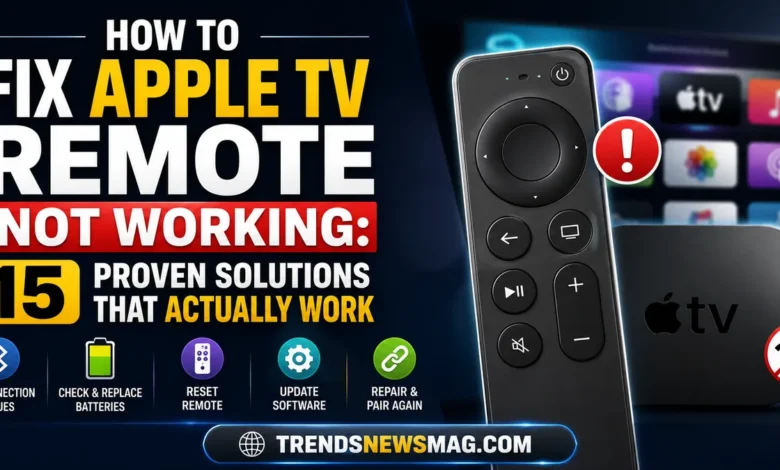
If you’re dealing with an Apple TV remote not working right now, take a breath. This is one of the most commonly reported issues among Apple TV owners, and the overwhelming majority of the time, it’s fixable without spending a dime or making a trip to the Apple Store. Sometimes the culprit is something laughably minor, like a dead battery or a Bluetooth pairing hiccup. Other times, it’s a deeper software conflict or a hardware fault that requires a bit more patience to diagnose.
This guide walks through every practical solution, starting with the quickest fixes and moving toward the more technical troubleshooting steps. Whether you own the newer Siri Remote with the click-pad and USB-C charging port, or an older aluminum remote from a previous generation, you’ll find relevant guidance here. We’ll also cover how to use your iPhone as a backup remote, when to consider a hardware replacement, and how to prevent this problem from recurring.
Let’s get your entertainment system back on track.
Why Your Apple TV Remote Stops Working in the First Place
Before jumping into fixes, it helps to understand what typically causes an Apple TV remote to stop responding. This isn’t usually a mysterious problem. Apple’s remotes, whether the touch-surface Siri Remote or the button-based versions, rely on Bluetooth connectivity to communicate with the Apple TV box. Bluetooth, while generally reliable, is still a wireless protocol susceptible to interference, pairing errors, and software glitches.
Battery depletion is the single most common reason people encounter this issue. The second-generation Siri Remote uses a rechargeable lithium-ion battery accessed via USB-C, while earlier models used replaceable CR2032 coin batteries. Both types can die unexpectedly, especially if the remote has been sitting unused for an extended period or if there’s a parasitic drain caused by a stuck button.
Beyond battery issues, software bugs within tvOS itself can cause temporary communication breakdowns between the remote and the Apple TV unit. This happens more often after a tvOS update, when background processes sometimes fail to properly re-establish the Bluetooth handshake. Physical damage, liquid exposure, and even simple pairing corruption can also be responsible. There’s also the occasional case of interference from other Bluetooth devices in the room, such as wireless headphones, smart speakers, or gaming controllers, all fighting for the same 2.4GHz frequency band.
Understanding these root causes matters because it shapes how you approach troubleshooting. A dead battery calls for a completely different fix than a corrupted Bluetooth pairing, and jumping straight to a factory reset when your issue is something as simple as low battery wastes time and can occasionally introduce new complications.
Check the Battery First: The Most Overlooked Fix
It sounds almost too obvious to mention, but a huge percentage of “Apple TV remote not working” complaints trace back to nothing more complicated than a depleted battery. If you’re using the second-generation Siri Remote (the one with the redesigned click-pad and physical power and mute buttons), it charges via a USB-C port located on the bottom edge of the device.
Plug it into a USB-C cable connected to a power adapter or your computer, and let it charge for at least fifteen to twenty minutes before testing it again. Interestingly, this remote can be used while charging, so if it powers back on mid-charge, that’s a strong sign the battery was indeed the problem. A full charge from empty typically takes around two hours and, according to Apple, can last several weeks under normal daily usage patterns.
If you own the older Siri Remote or the original Apple Remote, both of which use replaceable CR2032 coin-cell batteries, the fix is even simpler. Slide open the small compartment on the bottom of the remote (a coin or fingernail usually does the trick), remove the old battery, and pop in a fresh CR2032. These batteries are inexpensive and widely available at pharmacies, supermarkets, and electronics stores. It’s worth keeping a spare on hand, honestly, because remotes have a habit of dying at the most inconvenient moments.
One tech reviewer put it well when discussing remote reliability: “People don’t think about batteries until the exact moment they need the device most, and that’s precisely when it becomes a problem worth solving proactively.” That sentiment rings true for anyone who’s ever paused a movie only to discover their remote has gone completely silent.
Restart Your Apple TV Device
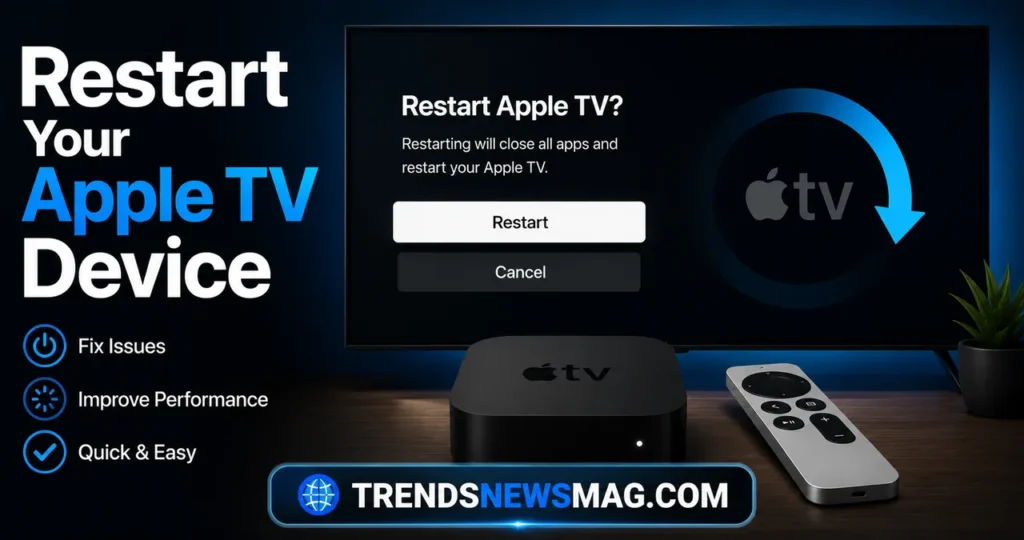
If the battery isn’t the issue, or you’ve already charged or replaced it and the remote still isn’t responding, the next logical step is restarting the Apple TV box itself. This might sound like generic advice, but it genuinely resolves a significant chunk of connectivity issues because it clears out temporary software processes that may have gotten stuck or corrupted.
To restart, unplug the Apple TV’s power cord directly from the wall outlet or power strip. Wait a full thirty seconds. This waiting period matters more than people realize, since it allows internal capacitors to fully discharge and ensures a genuinely clean restart rather than a quick power blip. Plug the cord back in and give the device a minute or two to boot back up completely. If you are exploring broader configuration settings or want to master all hardware features, check out our comprehensive Apple TV Explained Guide.
Once it’s powered on, try your remote again. In many cases, this simple reboot resolves whatever software confusion was preventing the Bluetooth connection from functioning correctly. If you have access to another remote, or if your iPhone’s Apple TV Remote feature in Control Center still works, you can also restart the device through the Settings menu by navigating to Settings, then System, then Restart, without needing to physically unplug anything.
It’s worth noting that a restart differs from a factory reset. A restart simply reboots the operating system without erasing any data, apps, or settings, making it a completely safe first troubleshooting step with zero risk to your setup.
Re-Pair the Remote Using the Correct Button Combination
When basic restarts don’t solve the issue, re-pairing the remote is typically the next move, and it addresses one of the most frequent underlying causes: a broken or corrupted Bluetooth pairing between the remote and the box. The exact process varies slightly depending on which Apple TV and remote generation you own, so it’s worth identifying your hardware first.
For the second-generation Siri Remote paired with an Apple TV 4K, hold the remote close to the Apple TV device itself, ideally within a few inches. Press and hold the TV button (or the Menu button, depending on model) together with the Volume Up button for approximately five seconds. You should see an on-screen prompt or the status light on the Apple TV flash briefly, indicating that pairing is in progress. Release the buttons once this happens.
For older remotes and Apple TV HD units, the process involves holding the remote within a few inches of the front of the Apple TV, then pressing and holding both the Menu and Volume Up buttons simultaneously for roughly five seconds. A message should appear on your television screen confirming successful pairing.
If no prompt appears at all, there’s a strong possibility the issue lies with Bluetooth interference or a deeper software fault rather than the pairing process itself, which means it’s time to look at other potential fixes covered further down in this guide.
Use Your iPhone as a Temporary Apple TV Remote
While troubleshooting a malfunctioning physical remote, you don’t have to sit there helplessly. Apple built a virtual remote feature directly into iOS, accessible through Control Center on any iPhone running a reasonably current version of iOS. This isn’t just a stopgap measure, either; plenty of people prefer using their iPhone as their primary remote because of the added functionality like a full keyboard for text entry.
To access it, swipe down from the top-right corner of your iPhone screen (or up from the bottom on older iPhone models) to open Control Center. Tap the Apple TV Remote icon, which resembles a small rectangle with rounded corners. If it’s not visible by default, you may need to add it through Settings, then Control Center, then customize the included controls.
Once activated, your iPhone screen transforms into a touch-sensitive trackpad that mimics the physical remote’s swipe gestures, along with on-screen buttons for Menu, Home, Play/Pause, and volume control. Both your iPhone and Apple TV need to be connected to the same Wi-Fi network for this feature to work correctly, and they should ideally be signed into the same Apple ID for the smoothest pairing experience.
This solution buys you time to properly troubleshoot the physical remote without missing out on your streaming plans in the meantime. If you are configuring a new screen layout or connecting to a new television, see our full tutorial on How to Setup Apple TV+ on Smart TVs. It’s also genuinely useful to keep configured even after your original remote starts working again, simply as a reliable backup.
Reset Bluetooth Connections in Apple TV Settings
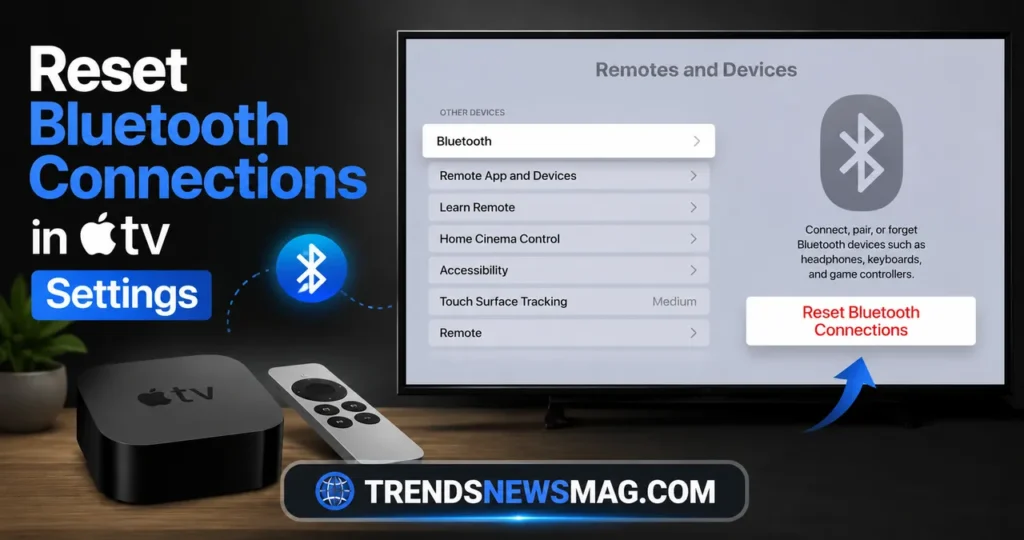
Sometimes the issue isn’t the remote’s battery or the pairing process, but rather a broader Bluetooth malfunction on the Apple TV’s end. If other Bluetooth accessories, like headphones or game controllers, are also struggling to connect or maintain a stable connection, this points toward a systemic Bluetooth problem rather than an issue isolated to the remote alone.
Using either the physical remote (if it’s partially functional) or your iPhone’s virtual remote, navigate to Settings, then Remotes and Devices, then Bluetooth. From here, you can see all currently paired devices. Select your Siri Remote from the list and choose to forget or unpair it. Afterward, follow the re-pairing steps outlined earlier to establish a fresh connection.
This process essentially forces the Apple TV to build an entirely new Bluetooth profile for the remote, wiping out any corrupted pairing data that might have accumulated over time. It’s a bit like clearing your browser’s cache when a website starts behaving strangely: sometimes stale data is genuinely the root of the problem, and a clean slate resolves it instantly.
If your Apple TV has an unusually high number of paired Bluetooth accessories, that can also degrade performance across the board. Consider removing devices you no longer use regularly to reduce potential interference and keep the Bluetooth environment cleaner overall.
Update tvOS to the Latest Version
Software bugs introduced by outdated tvOS versions are a legitimate and fairly common cause of remote connectivity problems. Apple regularly releases updates that patch Bluetooth stack issues, improve remote responsiveness, and fix known compatibility bugs, so running an outdated version of the operating system can absolutely be the reason your remote feels unreliable.
To check for updates, go to Settings, then System, then Software Updates, then Update Software. If an update is available, the Apple TV will download and install it automatically, though this does require an active internet connection and can take anywhere from a few minutes to upwards of twenty minutes depending on your connection speed and the size of the update package.
If your physical remote isn’t working well enough to navigate these menus, you can use the iPhone Control Center remote covered earlier, or in some cases, updates will install automatically overnight if your Apple TV is configured for automatic updates and connected to power and Wi-Fi consistently.
According to Apple’s own support documentation, keeping tvOS current is one of the recommended baseline steps for resolving a wide range of connectivity and performance issues, not just remote-specific ones. Many long-time Apple TV users report that a substantial percentage of their random connectivity glitches disappeared entirely after installing the latest available software update, which underscores just how much of this technology relies on continuously refined firmware rather than static, unchanging code.
Perform a Factory Reset as a Last Resort
If you’ve worked through battery checks, restarts, re-pairing, Bluetooth resets, and software updates without success, a factory reset becomes a reasonable next step. This is a more drastic measure, since it erases all settings, downloaded apps, and personalized configurations, returning the Apple TV to its original out-of-box state. It should be treated as a later-stage troubleshooting option rather than a first response.
To initiate a factory reset, navigate to Settings, then System, then Reset, then Reset. You’ll be prompted to confirm this action, since it cannot be undone without restoring from a backup or manually reconfiguring everything afterward. Once the reset completes and the Apple TV restarts, you’ll go through the initial setup process again, which includes a fresh remote pairing step baked directly into the onboarding flow.
There’s also a manual hardware reset method for situations where the on-screen menu is completely inaccessible. This involves unplugging the Apple TV, waiting several seconds, and holding down specific button combinations on the remote (varying by model) while reconnecting power, though this method is somewhat less common with modern Apple TV units since Apple has streamlined most reset processes through software menus instead.
It’s genuinely rare to need this step. In the vast majority of documented cases, one of the earlier fixes resolves the Apple TV remote not working issue without requiring a full system wipe. Still, knowing this option exists provides peace of mind if nothing else has worked.
Inspect the Remote for Physical Damage or Debris
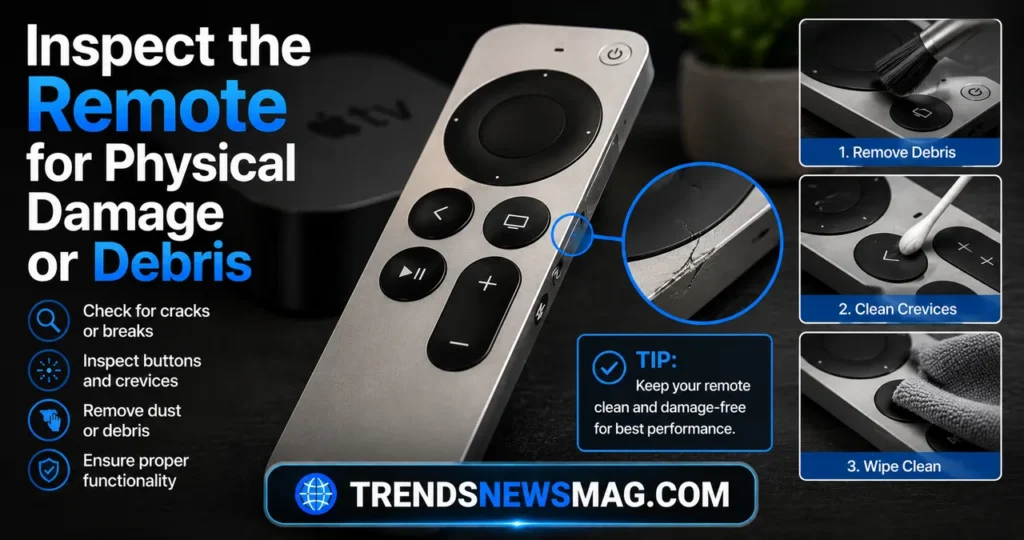
Sometimes the problem isn’t software or connectivity at all, but something far more tangible: physical wear, debris buildup, or liquid damage. The touch-surface Siri Remote, in particular, is prone to responsiveness issues if the click-pad accumulates dust, crumbs, or sticky residue from regular household use, especially in living rooms where snacking while watching TV is common practice.
Take a soft, slightly damp microfiber cloth and gently wipe down the entire surface of the remote, paying particular attention to the edges of the click-pad and the seams around any physical buttons. Avoid using excessive moisture or harsh cleaning chemicals, as these can seep into the internal electronics and cause more damage than they resolve. A cotton swab lightly dampened with isopropyl alcohol can help clean around button edges where grime tends to accumulate.
If your remote has been exposed to liquid, whether from a spilled drink or being left in a humid environment, this can cause internal corrosion that leads to unpredictable button behavior or complete failure. Unfortunately, liquid damage often isn’t something you can simply clean your way out of, and depending on severity, it may require professional repair or outright replacement.
Also check for visible cracks, warping, or a battery compartment that doesn’t sit flush anymore, since physical deformation can prevent proper contact between the battery and the internal circuitry, even when the battery itself is perfectly fine.
Common Apple TV Remote Issues and Their Typical Fixes
| Issue Observed | Most Likely Cause | Recommended Fix |
|---|---|---|
| Remote completely unresponsive | Dead battery | Charge via USB-C or replace CR2032 |
| Remote works only when very close to device | Weak Bluetooth signal | Reset Bluetooth pairing |
| Some buttons work, others don’t | Physical debris or damage | Clean surface, inspect for wear |
| Remote disconnects randomly during use | Interference from other devices | Remove unused Bluetooth accessories |
| Remote unresponsive after tvOS update | Software bug | Update to latest tvOS version |
| Click-pad not registering swipes | Surface grime or software glitch | Clean pad, restart Apple TV |
| Remote won’t pair at all | Corrupted pairing data | Forget device, re-pair from scratch |
This table offers a quick diagnostic reference, but keep in mind that symptoms can occasionally overlap across multiple causes, so it’s worth working through fixes systematically rather than assuming the first explanation is automatically correct.
Dealing with Interference from Other Wireless Devices
Bluetooth operates on the 2.4GHz frequency band, which happens to be shared by an enormous number of household devices, including Wi-Fi routers, microwave ovens, baby monitors, wireless keyboards, and cordless phones. When too many of these devices operate simultaneously in close proximity, signal interference can degrade Bluetooth performance significantly, causing your Apple TV remote to become laggy or entirely unresponsive.
If you suspect interference, try temporarily powering down other Bluetooth devices in the room one at a time to see if remote responsiveness improves. Pay particular attention to devices positioned physically close to your Apple TV box itself, since proximity to the interference source matters more than overall room size. Wireless routers operating on the 2.4GHz band rather than 5GHz are especially common culprits, so if you have the option to switch your router’s primary broadcast band, that’s worth experimenting with.
Physical obstructions matter too, though to a lesser degree than direct interference. Thick walls, large metal objects, and even fish tanks (yes, really, due to the water’s signal-dampening properties) can weaken Bluetooth connectivity between the remote and the Apple TV unit. Repositioning either the Apple TV box or reducing physical barriers between it and where you typically sit can make a noticeable difference in responsiveness.
As one home theater technician noted during an interview about common streaming device complaints: “People assume their remote is broken when really it’s fighting for bandwidth against half a dozen other gadgets in the same room, and once you clear that congestion, the improvement is often immediate.”
When to Consider Replacing Your Apple TV Remote
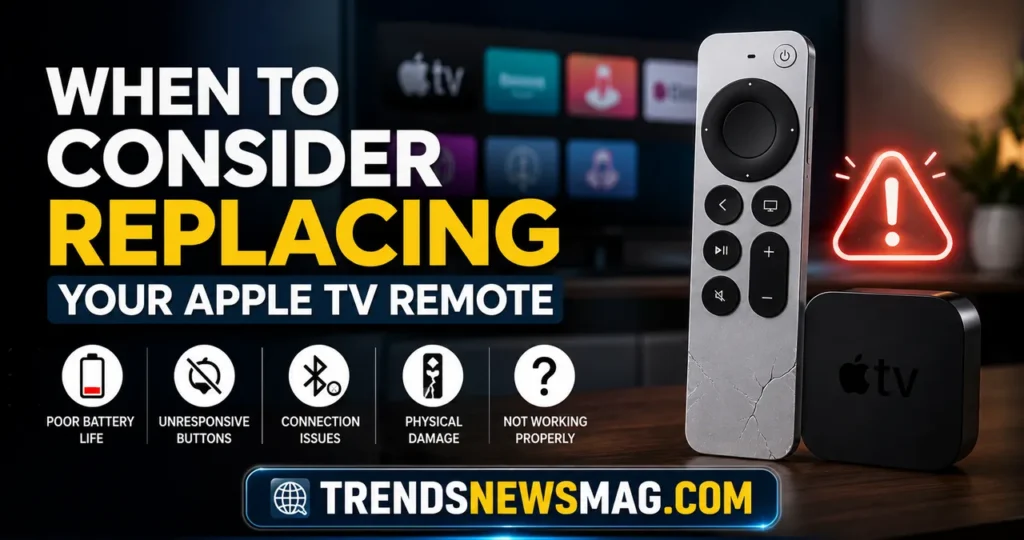
After exhausting every reasonable troubleshooting avenue, sometimes the honest conclusion is that the remote itself has failed and needs replacing. This is more common with older units, particularly those several years into regular daily use, since internal components like the battery and Bluetooth chip do degrade naturally over time regardless of how well the device has been cared for.
Apple sells replacement Siri Remotes directly through their online store and retail locations, and third-party compatible remotes are also available at typically lower price points through various electronics retailers. If your Apple TV is still under Apple’s standard warranty or covered by AppleCare, it’s worth checking whether remote replacement is included, since Apple has occasionally offered free replacements for units affected by known manufacturing defects.
Before purchasing a replacement, double-check which generation of Apple TV you own, since remote compatibility isn’t universal across every hardware generation. The second-generation Siri Remote, for instance, works with Apple TV 4K (2nd generation and later), but older Apple TV HD units use a different remote design entirely. Buying the wrong remote is a surprisingly common and entirely avoidable mistake.
If budget is a concern, third-party universal remotes with Apple TV compatibility have improved considerably in recent years, offering many of the same features at a fraction of the cost, though they occasionally lack certain premium touches like the Siri voice search button or the precise click-pad sensitivity that Apple’s official hardware provides.
Preventing Future Remote Problems
Once you’ve resolved your current Apple TV remote not working situation, a bit of preventative maintenance goes a long way toward avoiding a repeat scenario. Regularly charging the second-generation Siri Remote, ideally before it drops below twenty percent battery, helps maintain long-term battery health and reduces the likelihood of unexpected dead-battery situations at inconvenient moments.
Keep the remote away from direct sunlight, excessive heat sources, and humid environments, all of which can accelerate wear on internal components over time. If you have young children or pets in the household, consider storing the remote in a slightly elevated location when not in use, since drops and impacts are a leading cause of premature hardware failure in small handheld electronics like this.
Periodically checking for tvOS updates, even when everything seems to be working fine, helps ensure you’re benefiting from the latest Bluetooth stability improvements and bug fixes Apple continues to roll out. Many users set their Apple TV to install updates automatically overnight specifically to avoid dealing with this manually.
Finally, familiarize yourself with the iPhone Control Center remote feature even if you never plan to use it as your primary control method. Having that backup readily available means that if your physical Apple TV remote ever does need troubleshooting again, you won’t lose access to your streaming setup in the meantime.
Conclusion
Dealing with an Apple TV remote not working can feel disproportionately frustrating given how small and seemingly simple the device is, but as this guide demonstrates, the vast majority of cases stem from easily correctable issues like battery depletion, Bluetooth pairing corruption, or outdated software. Working through these fixes systematically, starting with the simplest explanations before moving toward more involved solutions like factory resets or hardware replacement, will resolve the overwhelming majority of cases without professional intervention or unnecessary expense.
Remember that your iPhone can serve as a capable backup remote throughout the troubleshooting process, so you’re never truly stuck without a way to control your Apple TV. And if you do eventually determine that hardware replacement is necessary, understanding your specific Apple TV generation ensures you purchase a genuinely compatible remote the first time around. For more official troubleshooting guidance directly from Apple, you can visit Apple’s official support page for additional device-specific instructions.
How do I know if my Apple TV remote battery needs charging or replacing?
If you own the second-generation Siri Remote with USB-C charging, a low battery is usually the first thing to check whenever your Apple TV remote not working issue arises. You can check the battery percentage by navigating to Settings, then Remotes and Devices on your Apple TV, where the current charge level is displayed clearly. For older remotes using replaceable CR2032 coin batteries, there’s no on-screen indicator, so if the remote has been in use for several months without a battery change, simply replacing it is often the fastest diagnostic step, since these batteries are inexpensive and widely available.
Why does my Apple TV remote only work when I’m sitting very close to the device?
This symptom typically points toward a weakening Bluetooth connection rather than a completely dead remote. It can result from battery levels running low, since reduced power output affects transmission range, or from interference caused by other wireless devices sharing the same frequency band. Re-pairing the remote from scratch, along with removing unnecessary Bluetooth accessories from your Apple TV’s paired devices list, usually restores normal operating range within a few feet to several yards, depending on your specific home environment and physical obstructions.
Can a tvOS software update actually cause my remote to stop working?
Yes, this happens more frequently than most people realize. Occasionally, a tvOS update introduces a temporary bug affecting the Bluetooth stack or remote communication protocols, and Apple typically addresses these issues in subsequent patch releases within days or weeks. If your remote stopped working immediately after installing a software update, checking for an additional pending update, or simply restarting the Apple TV device, often resolves the conflict without requiring any other troubleshooting steps.
Is it safe to use a third-party replacement remote instead of Apple’s official one?
Generally, yes, though functionality can vary depending on the manufacturer. Reputable third-party remotes are designed to be compatible with specific Apple TV generations and typically replicate core functions like navigation, playback controls, and volume adjustment reliably. However, some lack Siri voice search capability or the precise gesture sensitivity of Apple’s official click-pad design. If those premium features matter significantly to your daily usage, sticking with Apple’s official replacement remote is the safer choice, even though it usually comes at a higher price point.
What should I do if none of these troubleshooting steps fix my Apple TV remote?
If you’ve worked through battery checks, restarts, re-pairing, Bluetooth resets, software updates, and a factory reset without success, it’s reasonable to conclude the remote has a genuine hardware fault. At this point, contacting Apple Support directly or visiting an authorized service provider is the most sensible next step, since they can run deeper diagnostics or facilitate a warranty replacement if your device qualifies. Purchasing a replacement remote, whether official or a trusted third-party option, is also a completely valid solution once you’ve confirmed the issue isn’t related to software or pairing configuration.
Related Hardware & Streaming Guides: