How to Setup Apple TV+ on Smart TVs: The Complete Step-by-Step Guide for Every Brand and Model

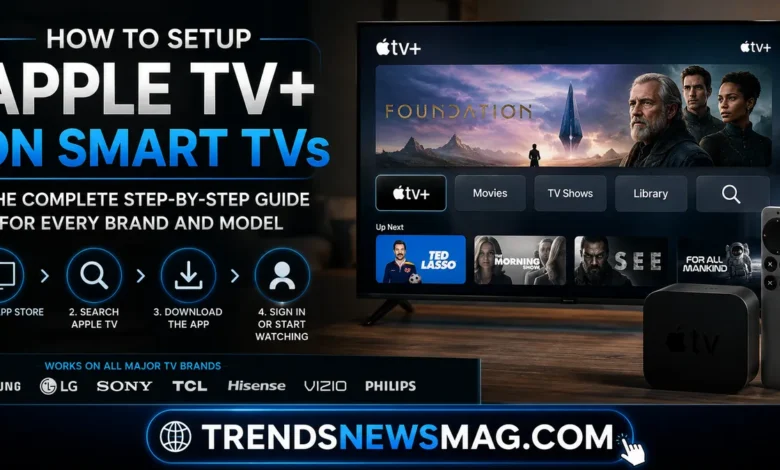
Streaming has quietly rewritten the rules of how we spend our evenings, and Apple TV+ sits right in the middle of that shift. Unlike some of its competitors, Apple’s streaming service doesn’t rely on a single hardware box to function. It’s baked into a huge range of televisions and streaming devices, which is fantastic news for anyone who already owns a modern television. Yet despite this wide availability, a surprising number of people still get stuck somewhere between unboxing their television and actually watching their first show. Menus differ from brand to brand, account syncing sometimes throws unexpected errors, and remote controls don’t always behave the way you’d expect them to.


This guide walks through everything involved in getting Apple TV+ running on your smart television, regardless of which brand sits in your living room. Whether you’re dealing with a Samsung QLED, an LG OLED, a Sony Bravia, a Vizio, a Hisense, or even an older television paired with a Roku or Fire TV stick, the process shares a common backbone with a few brand-specific quirks. By the end of this article, you’ll understand not just the mechanical steps but also the reasoning behind them, so that if something goes sideways, you’ll know exactly why and how to fix it.
Understanding What Apple TV+ Actually Is Before You Begin
Before diving into setup instructions, it helps to clarify what Apple TV+ actually is, because confusion here causes a surprising number of support headaches. Apple TV+ is Apple’s original content subscription service, home to shows like “Ted Lasso,” “Severance,” and “Slow Horses,” along with a growing slate of films and documentaries. This is different from the Apple TV app, which is a broader hub that aggregates content from multiple subscriptions, lets you rent or buy movies, and organizes your watchlist across services. It’s also different from the Apple TV device itself—a physical streaming box that plugs into your television. (For a deep dive into hardware features, check out our guide on [Apple TV Explained]).
This distinction matters because when someone says they can’t set up Apple TV+ on their smart TV, they usually mean they can’t find or sign into the Apple TV app, which is the actual gateway to the Apple TV+ subscription. Most modern smart TVs come with the Apple TV app pre-installed or available through their respective app stores, and Apple TV+ lives inside that app rather than as a standalone application. Once you grasp this relationship, the rest of the setup process becomes far more intuitive, because you’re no longer hunting for something that technically doesn’t exist as a separate download.
It’s also worth noting that Apple has intentionally made this service platform-agnostic in a way that feels almost generous compared to how tightly Apple usually controls its ecosystem. According to reporting from Forbes, Apple’s strategy of pushing Apple TV+ onto rival hardware, including Samsung and LG televisions, reflects a broader industry trend where content companies prioritize reach over hardware exclusivity. That decision directly benefits you as a viewer, because it means you likely don’t need to purchase any additional equipment to access the service.
Checking Smart TV Compatibility Before You Start the Setup Process
Not every smart TV supports the Apple TV app natively, and checking compatibility upfront saves you from unnecessary frustration. Generally speaking, most smart TVs manufactured from 2018 onward support the Apple TV app in some form, though the exact list of supported models varies by brand and region. Samsung has supported the app since 2018 on many of its Tizen-based televisions, while LG began offering it on WebOS models around the same period. Sony’s Android TV and Google TV lineups have long supported it through the Google Play Store, and Vizio added support through its SmartCast platform a bit later.
If you’re using an older television that predates these integrations, don’t panic, because you still have options. Streaming devices such as a Roku player, an Amazon Fire TV stick, a Chromecast with Google TV, or an actual Apple TV box can all serve as intermediaries, bringing the Apple TV+ experience to a screen that wouldn’t otherwise support it directly. This flexibility is part of what makes learning how to setup Apple TV+ on Smart TVs so accessible for nearly everyone, regardless of budget or television age. Even a modest secondhand streaming stick, often available for under thirty dollars, can transform an aging television into a fully capable Apple TV+ viewing station.
It’s worth checking your television’s app store directly rather than relying solely on assumptions based on the manufacturer or release year. Search for “Apple TV” within your television’s native app marketplace, and if it appears, your device is compatible. If it doesn’t show up, a quick firmware update sometimes resolves the issue, since manufacturers periodically roll out software updates that add new app support to existing hardware.
Setting Up Apple TV+ on Samsung Smart TVs
Samsung televisions running on the Tizen operating system have offered strong Apple TV+ integration for several years now, and the process tends to be refreshingly straightforward. Start by pressing the Home button on your Samsung remote, which brings up the main navigation bar along the bottom of your screen. From there, scroll to the Apps section, where you’ll either see the Apple TV app already installed or find it by searching within the Samsung app store. Newer Samsung models, particularly those from 2021 onward, often display it prominently on the home screen without any digging required.
Once you open the app, you’ll be prompted to sign in using your Apple ID. This step trips up more people than any other part of the process, primarily because two-factor authentication sometimes causes a delay between entering your password and receiving the verification code on your paired device. Keep your iPhone or iPad nearby during this step, since the code typically arrives within a few seconds, though occasionally it takes up to a minute depending on your network conditions. Once verified, your Apple TV+ subscription, along with any other content you’ve purchased or rented through Apple, syncs automatically to the app.
Samsung has also integrated Apple TV+ content directly into its Samsung TV Plus interface in certain regions, which means you might occasionally see Apple TV+ shows recommended within Samsung’s own content discovery rows. This doesn’t replace the need to sign in separately, but it does mean the two ecosystems talk to each other more than you might expect. One Samsung support technician noted in an online forum thread, “Once your Apple ID is linked, everything from your watchlist to your continue-watching progress carries over seamlessly across the Apple TV app and even onto other Apple devices you own.” That kind of continuity is genuinely useful if you split your viewing time between a phone, tablet, and television.
Getting Apple TV+ Running on LG Smart TVs
LG’s WebOS platform has its own visual language and menu structure, but the underlying logic for setting up Apple TV+ mirrors what you’ll find on Samsung devices. Press the Home button on your LG Magic Remote, then navigate to the apps row where you’ll find the Apple TV app either pre-installed or available for download through the LG Content Store. WebOS has supported the app since around 2019, so unless your television is quite old, you shouldn’t run into compatibility issues.
After launching the app, sign in with your Apple ID credentials just as you would on any other platform. LG’s Magic Remote, with its pointer-based navigation, actually makes text entry a bit smoother than traditional directional pad remotes, since you can hover and click directly on letters rather than scrolling through an on-screen keyboard one character at a time. If you find the pointer functionality finicky, switching to directional navigation mode within the remote settings often resolves erratic cursor movement.
One quirk specific to LG televisions involves the ThinQ AI voice assistant, which can actually launch Apple TV+ content directly through voice commands once you’re signed in. Saying something like “Open Apple TV” while holding the microphone button will jump straight into the app, bypassing the home screen navigation entirely. This is a small convenience, but for households where multiple people share the remote, it removes a layer of friction that would otherwise require memorizing which row of icons the app lives in. LG has continued refining this voice integration with each WebOS update, and by most accounts, response accuracy has improved substantially over the past few software cycles.
Configuring Apple TV+ on Sony, Vizio, and Hisense Televisions
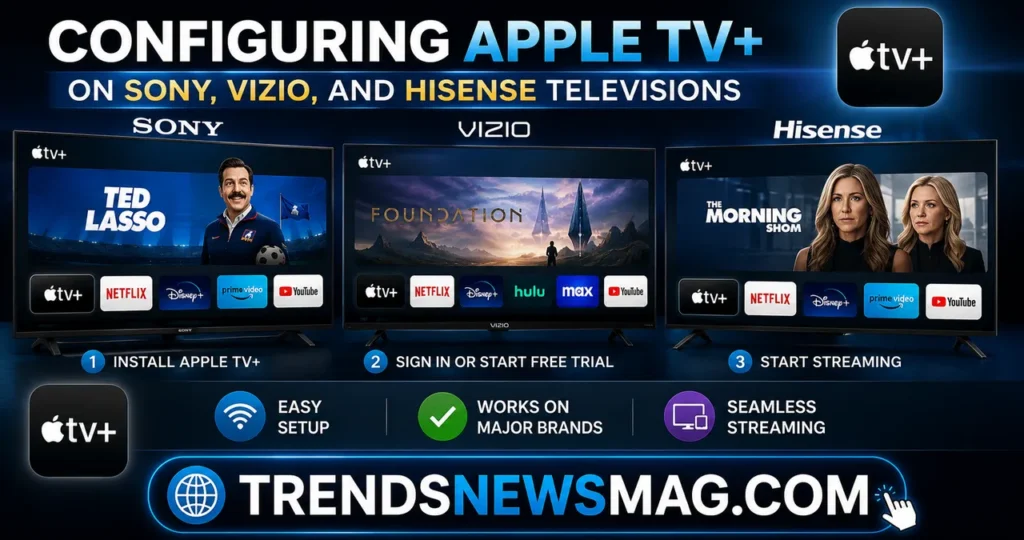
Sony televisions running Android TV or Google TV handle Apple TV+ setup a bit differently than Samsung or LG models, primarily because the app comes through the Google Play Store rather than a manufacturer-specific marketplace. Open the Play Store from your home screen, search for “Apple TV,” and install the application. Once installed, sign in with your Apple ID, and you’ll notice the interface looks nearly identical to what you’d see on an actual Apple TV box, since Google TV and Android TV both render the app using Apple’s standard design template rather than a customized skin.
Vizio’s SmartCast platform takes a slightly different approach. Rather than housing apps in a traditional grid, SmartCast organizes content through a more streamlined interface, and Apple TV+ typically appears as a featured tile on the home screen for supported models. If it’s not immediately visible, press the V button on your Vizio remote to pull up the full app list, where you should find it listed alongside other major streaming services. Sign-in works the same way across all these platforms, requiring your Apple ID and, in most cases, two-factor verification.
Hisense televisions, many of which run on either Android TV, Google TV, or Hisense’s own VIDAA operating system, follow a similar pattern to Sony for the Android-based models. VIDAA-based Hisense sets require checking the native app store, and while support has expanded significantly over recent years, older or budget-tier VIDAA models occasionally lack native Apple TV+ support entirely. In those cases, pairing the television with an external streaming device becomes the more reliable path forward. A reader who recently switched from cable to streaming mentioned in a community discussion, “I assumed my three-year-old Hisense wouldn’t support it since I couldn’t find the app anywhere, but a firmware update from the settings menu added it within a week.” That kind of experience isn’t uncommon, so checking for system updates before assuming incompatibility is always worth the extra five minutes.
Using Streaming Devices When Your TV Lacks Native Support
For televisions that don’t support the Apple TV app directly, external streaming devices offer a dependable workaround that many people actually prefer, even when native support exists. Roku devices, for instance, have supported the Apple TV channel since 2019, and the setup process involves adding the channel from the Roku Channel Store, then signing in with your Apple credentials just as you would on a built-in smart TV app. Roku’s remote and interface are widely regarded as some of the most intuitive in the streaming device category, which is part of why so many people choose to use a Roku stick even when their television already has a smart platform built in.
Amazon Fire TV devices follow a nearly identical process, with the Apple TV app available directly through the Amazon Appstore. Once installed and signed in, Fire TV users get full access to Apple TV+ content, including support for 4K HDR playback on compatible Fire TV models, provided your internet connection and television both support those specifications. Chromecast with Google TV works the same way through the Google Play Store, and because it runs the same Android TV foundation as many Sony and Hisense models, the interface will feel immediately familiar if you’ve used Apple TV+ on those brands before.
The actual Apple TV box, sold directly by Apple, remains the most seamless option for households already invested in Apple’s broader ecosystem, since it integrates AirPlay, HomeKit, and Siri remote functionality in ways third-party devices can’t fully replicate. That said, the price difference between an Apple TV 4K box and a Roku stick is substantial. (If you’re stuck choosing between the two, read our in-depth comparison: [Apple TV 4K vs Roku Ultra 2026]). and for the specific purpose of watching Apple TV+ content, the cheaper devices perform admirably well. While setting up official apps is straightforward, users exploring third-party streaming options or IPTV alternatives should read our Apollo Group TV Review for legal risks and safer alternatives. The table below breaks down how these options compare across the factors that matter most when deciding which route to take.
| Device Type | Setup Difficulty | 4K HDR Support | Approximate Price Range | Best For |
|---|---|---|---|---|
| Built-in Smart TV App | Easy | Varies by model | Included with TV | Users with newer smart TVs |
| Roku Streaming Stick | Very Easy | Yes (select models) | $30–$50 | Budget-conscious streamers |
| Amazon Fire TV Stick | Easy | Yes (select models) | $30–$60 | Amazon ecosystem users |
| Chromecast with Google TV | Easy | Yes | $40–$50 | Android and Google users |
| Apple TV 4K Box | Very Easy | Yes | $130–$150 | Apple ecosystem households |
This comparison makes it clear that there’s no single “correct” way to access Apple TV+, and the right choice depends heavily on what other devices and services you already use regularly.
Signing In and Managing Your Apple ID Across Multiple Devices
Regardless of which television or streaming device you’re using, the sign-in process for Apple TV+ hinges entirely on your Apple ID, and understanding how this account works across devices prevents a lot of unnecessary confusion. When you sign in on your smart TV, you’re not creating a new account or a television-specific login; you’re simply authenticating the same Apple ID you use on your iPhone, iPad, or Mac. This means your subscription status, purchase history, and even your viewing progress sync automatically across every device where you’re signed in.
Two-factor authentication, while occasionally mildly annoying when you’re eager to start watching something, exists for good reason and significantly reduces the risk of unauthorized account access. If you don’t have an Apple device handy to receive the verification code, you can request that it be sent via text message instead, provided you’ve registered a trusted phone number with your Apple ID. Alternatively, some smart TVs support a code-based pairing method where you visit a specific web address on your phone or computer, enter a short code displayed on your television screen, and complete the sign-in remotely without typing your password on the TV at all.
This code-based method deserves more attention because it solves one of the most common frustrations people encounter, which is typing a complex password using a directional remote control. Instead of clicking through an on-screen keyboard letter by letter, you authenticate on a device where typing is fast and natural, and the television simply confirms the connection once you’ve entered the matching code. Most major smart TV brands and streaming devices now support this method, and it’s worth actively looking for it rather than defaulting to manual password entry.
Troubleshooting Common Apple TV+ Setup Problems
Even with a fairly standardized setup process across brands, things occasionally go wrong, and knowing how to diagnose the issue quickly saves considerable frustration. One of the most frequent problems involves the app failing to load or crashing immediately after opening, which in most cases stems from an outdated app version or an outdated television operating system. Checking for both app updates and system firmware updates through your television’s settings menu resolves this issue more often than any other troubleshooting step.
Another common issue involves the verification code for two-factor authentication never arriving, which typically points to either a network connectivity problem on your phone or an issue with your trusted phone number registration. Restarting your phone, confirming it has a stable internet or cellular connection, and double-checking that your trusted number is current in your Apple ID account settings usually clears this up. If you’ve recently changed phone numbers and forgotten to update your Apple ID accordingly, this is often the root cause.
Audio and video syncing problems, where dialogue appears slightly out of sync with lip movement, tend to be television-specific rather than related to Apple TV+ itself. These issues often trace back to HDMI settings, particularly when a television’s game mode or motion smoothing features interfere with playback timing. Disabling motion interpolation features, sometimes labeled as “TruMotion” on LG models or “Motionflow” on Sony televisions, frequently resolves sync complaints, especially during high-action scenes where the mismatch becomes most noticeable.
Buffering and playback stuttering, meanwhile, almost always relate to your home network rather than the app or television hardware. Apple TV+ streams in up to 4K HDR quality on supported content, which requires a stable connection with sufficient bandwidth, generally recommended at a minimum of 25 Mbps for smooth 4K playback. With major telecom shifts like the Verizon Google billion dollar deal shaping network speed standards, having reliable home bandwidth is essential. If you’re experiencing frequent buffering, running a speed test during your typical viewing hours can reveal whether network congestion, rather than a setup error, is the actual culprit. According to broadband guidance published by PCMag, households streaming multiple 4K devices simultaneously often need considerably more bandwidth than the minimum recommendation to avoid quality degradation during peak usage hours.
Optimizing Picture and Sound Settings for the Best Apple TV+ Experience
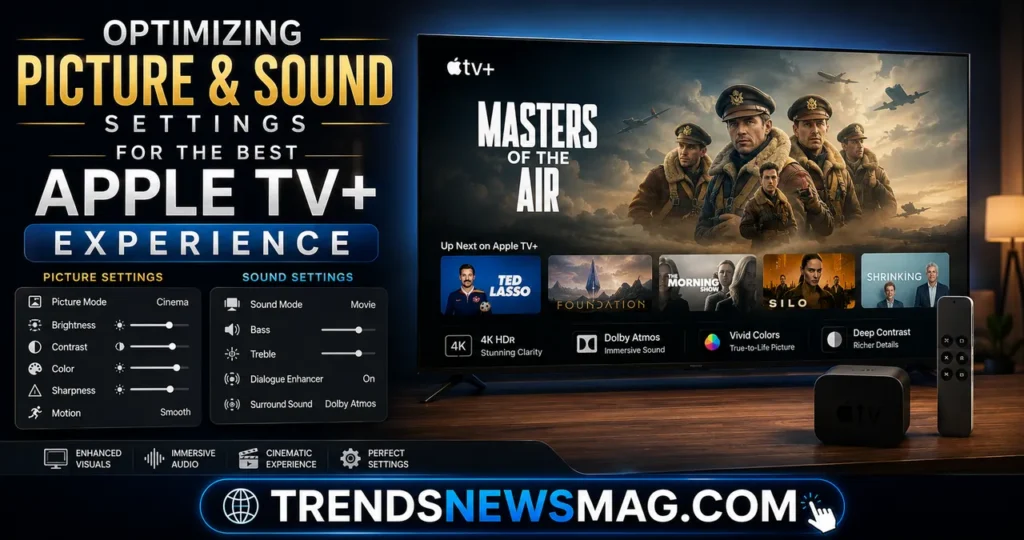
Once you’ve successfully learned how to setup Apple TV+ on Smart TVs, there’s a secondary layer of optimization worth exploring, because default television settings rarely showcase content at its best. Most smart TVs ship with picture presets like “Vivid” or “Dynamic” that boost brightness and saturation in ways that actually distort the color accuracy filmmakers intended. For Apple TV+ content specifically, many of which use cinematic color grading techniques, switching to a “Movie,” “Cinema,” or “Filmmaker Mode” preset produces noticeably more accurate and pleasant results.
Filmmaker Mode, an industry initiative supported by several major television manufacturers including LG, Samsung, and Panasonic, automatically disables motion smoothing and adjusts color temperature to match the director’s original intent when watching film or television content. If your television supports this feature, enabling it specifically for the Apple TV app ensures that shows like “Foundation” or “Masters of the Air,” both known for their meticulous visual craftsmanship, appear as close as possible to how they looked in the original mastering suite.
Sound settings deserve similar attention, particularly if your television supports Dolby Atmos, which many Apple TV+ productions utilize for immersive audio design. Checking your television’s audio output settings to ensure Dolby Atmos passthrough is enabled, especially if you’re using an external soundbar or home theater system, makes a considerable difference in shows with elaborate sound design. Without this setting properly configured, you might be missing out on audio detail that the production team specifically engineered for compatible systems, even though the visual experience remains unaffected.
Understanding Apple TV+ Subscription Tiers and Bundled Access
Setting up the app is only half the equation, since actually watching content requires an active subscription, and understanding your options here can save you money depending on your broader Apple purchasing habits. Apple TV+ operates on a straightforward monthly subscription model, though pricing has increased somewhat since the service first launched in 2019. Beyond the standalone subscription, Apple also bundles TV+ access into its Apple One subscription packages, which combine multiple services like Apple Music, iCloud storage, and Apple Arcade into a single discounted monthly fee.
If you’ve recently purchased a new iPhone, iPad, or Mac, there’s a reasonable chance you’re eligible for a complimentary trial period of Apple TV+, a promotion Apple has run in various forms since the service’s launch. This trial activates automatically when you sign into the Apple TV app using the Apple ID associated with your new device purchase, so it’s worth checking your account status before assuming you need to pay immediately. Students also frequently qualify for discounted bundle pricing through Apple Music’s student plan, which includes Apple TV+ at no additional cost.
For households already deep into Apple’s ecosystem with multiple devices and services, Apple One often represents meaningful savings compared to subscribing to each service individually. However, if Apple TV+ is the only Apple service you’re interested in, sticking with the standalone subscription avoids paying for services like Apple Arcade or extra iCloud storage that you might never actually use. Comparing your household’s actual usage patterns against the bundle pricing structure, rather than assuming the bundle is automatically the better deal, ensures you’re not overpaying for features that go untouched.
Managing Family Sharing and Multiple Profiles on Apple TV+
Apple TV+ supports Family Sharing, which allows up to six family members to share a single subscription without each person needing a separate paid account. Setting this up requires that your household already has Family Sharing configured through Apple ID settings, a feature that also extends to App Store purchases, iCloud storage plans, and other Apple subscriptions. Once Family Sharing is active, any family member signing into the Apple TV app on their own smart TV or device automatically gains access to the shared Apple TV+ subscription.
This is particularly valuable for households where family members live in different locations but still share a family Apple subscription plan, since each person can set up Apple TV+ on their own smart TV independently using their individual Apple ID, while still drawing from the same shared subscription. Viewing history and recommendations remain personalized to each individual profile even though the underlying billing and subscription access is shared, which prevents the awkward situation of everyone’s watchlist becoming a jumbled mess of unrelated shows.
Setting up separate profiles specifically within the Apple TV app, distinct from Family Sharing itself, allows household members watching from the same television to maintain individual watch histories and personalized recommendations. This is especially useful in homes where taste in content varies wildly between family members, since it prevents a teenager’s binge-watching habits from skewing the recommendation algorithm for a parent who primarily watches documentaries. Setting up these individual profiles takes just a few extra minutes within the app’s settings menu but pays off considerably in terms of a more tailored viewing experience over time.
Exploring AirPlay and Cross-Device Integration Features
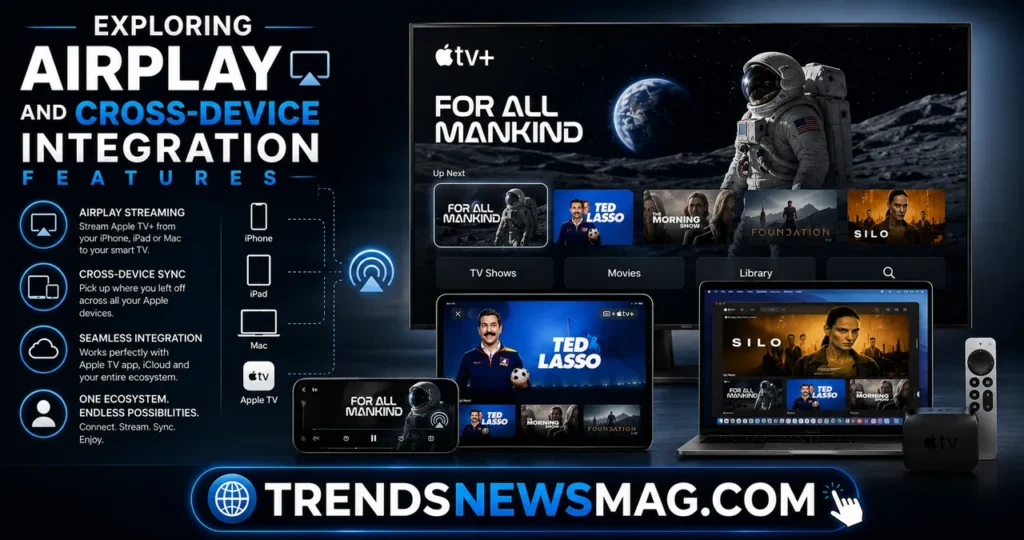
For anyone who owns an iPhone, iPad, or Mac alongside their smart TV, AirPlay integration adds another layer of convenience worth understanding. AirPlay allows you to start watching a show on your phone during a commute or a lunch break, then seamlessly beam that same content, at the same playback position, directly to your television screen once you’re home. This works because Apple TV+ tracks your viewing progress across your Apple ID rather than tying it to a specific device, so switching screens never means starting over from the beginning.
Most modern smart TVs with Apple TV+ support also include native AirPlay 2 compatibility, meaning you don’t even need a physical Apple TV box to use this feature. Samsung, LG, Sony, and Vizio have all integrated AirPlay 2 support into their respective smart TV platforms over the past several years, a move that reflects how thoroughly Apple has prioritized cross-platform accessibility for its content ecosystem. Enabling AirPlay typically involves a simple toggle within your television’s network or general settings menu, after which your television becomes discoverable to any Apple device on the same Wi-Fi network.
This integration extends beyond just Apple TV+ content, too, since AirPlay works with photos, other streaming apps, and even mirroring your entire device screen onto the television. For families gathering around vacation photos or planning something together using a shared screen, this functionality turns the television into a much more versatile hub than it would be using the Apple TV+ app in isolation. It’s a feature that often goes unused simply because people don’t realize their television supports it, so checking your settings menu for an AirPlay toggle is worth doing even if you weren’t specifically looking for it.
Related Guides:
- Best Streaming Devices for 4K HDR TVs (2026 Guide)
- How to Fix Apple TV Remote Not Working (15 Proven Fixes)
Conclusion
Getting Apple TV+ running on your television doesn’t need to be complicated once you understand the underlying structure connecting your Apple ID, the Apple TV app, and your specific television brand’s app ecosystem. Whether you’re working with a Samsung, LG, Sony, Vizio, or Hisense smart TV, or relying on an external device like a Roku or Fire TV stick, the fundamental steps remain consistent: locate the app, sign in with your Apple ID, verify through two-factor authentication, and let your subscription and viewing history sync automatically across every device tied to your account. Learning how to setup Apple TV+ on Smart TVs really comes down to recognizing that Apple built this service to work almost anywhere, removing most of the traditional friction associated with cross-platform streaming.
Beyond the basic setup, taking a few extra minutes to optimize picture presets, enable Dolby Atmos passthrough, configure Family Sharing, and explore AirPlay functionality transforms a merely functional setup into a genuinely excellent viewing experience. These small adjustments, often overlooked during initial setup, make a measurable difference in how content looks and sounds, particularly for a service like Apple TV+ that invests heavily in cinematic production values. For additional technical specifications and official troubleshooting resources, Apple maintains detailed support documentation at support.apple.com, which is worth bookmarking for future reference as software updates continue to refine the experience across all supported platforms.
FAQs
How do I know if my smart TV supports Apple TV+ without buying extra hardware?
The easiest way to check is by searching directly within your television’s built-in app store rather than relying on assumptions based on your TV’s age or brand. Most televisions manufactured after 2018 from major brands like Samsung, LG, Sony, and Vizio include native support, though checking for a pending firmware update before giving up is always a smart move, since manufacturers regularly add app support to existing models through software updates rather than requiring new hardware purchases.
Can I use Apple TV+ on a smart TV without owning any other Apple devices?
Yes, absolutely, since Apple TV+ was specifically designed to function independently of Apple hardware ownership. You’ll need an Apple ID to sign in, which is free to create and doesn’t require owning an iPhone, iPad, or Mac, though having one nearby does make the two-factor authentication step slightly faster during the initial sign-in process.
Why does my Apple TV+ app keep crashing on my smart TV?
App crashes typically stem from outdated software, either at the app level or within your television’s overall operating system, so checking both for available updates is the first troubleshooting step worth trying. If updates don’t resolve the issue, uninstalling and reinstalling the app often clears corrupted cache files that can accumulate over time and cause instability, particularly on televisions that haven’t been restarted in several weeks.
Does setting up Apple TV+ on multiple smart TVs cost extra money?
No, your Apple TV+ subscription isn’t tied to a specific television or device, so you can sign in with the same Apple ID on as many compatible smart TVs, streaming devices, phones, and tablets as you own without any additional charges. The only limitation involves simultaneous streaming, since Apple does cap the number of devices that can stream content at the exact same moment under a single account.
What should I do if the verification code for my Apple ID never arrives during setup?
Start by confirming that the phone or device meant to receive the code has a stable internet or cellular connection, since delivery failures often trace back to connectivity issues rather than problems with Apple’s servers themselves. If the code still doesn’t arrive after a few minutes, double-check that your trusted phone number is current within your Apple ID account settings, since an outdated number is one of the most common reasons verification codes fail to reach their intended destination during the smart TV setup process.
Related Guides on TrendsNewsMag: