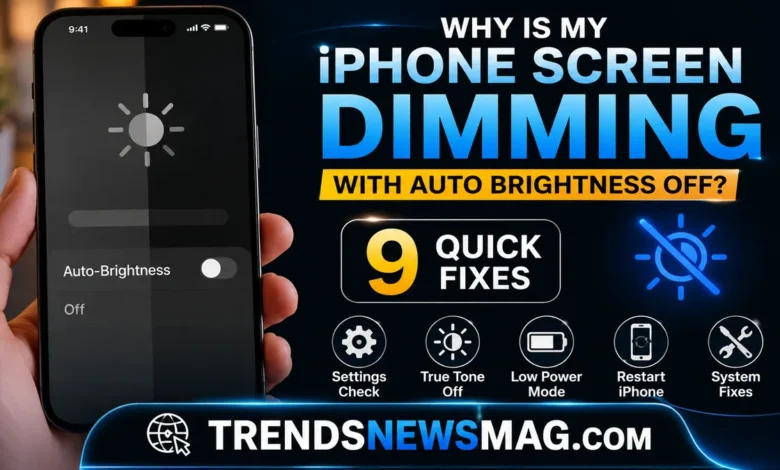
If you’ve turned off Auto-Brightness on your iPhone and you’re still watching the screen fade on its own, you’re not imagining things, and you’re definitely not alone. This is one of the most quietly frustrating issues iPhone owners run into, because on paper, disabling that toggle should mean one thing: the brightness stays exactly where you set it, period. Yet for thousands of users, that’s simply not what happens. The screen dims during video playback, it dims while reading in a dim room, it dims randomly during a phone call, and sometimes it dims so gradually you don’t even notice until your eyes start straining.


The truth is, iPhone screen dimming with auto brightness off is a far more layered problem than Apple’s simple toggle switch suggests. There are several separate systems running quietly in the background of iOS that can independently affect how bright or dim your screen appears, and most of them have nothing to do with the Auto-Brightness setting you think you’ve already disabled. Some are tied to battery health. Others are tied to thermal management. A few are tied to features you’ve probably never even noticed buried three menus deep in Settings. And in rare but real cases, it’s a hardware symptom masquerading as a software quirk.
This article is going to walk through every single reason your iPhone screen dimming with auto brightness off continues to happen, in plain language, with the kind of practical detail that actually gets you to a resolution instead of another dead end. Whether you’re on an iPhone 12, a brand-new iPhone 16 Pro, or something in between, the underlying mechanics are largely the same, and the fixes below apply across nearly the entire modern iPhone lineup.
Why Does Your iPhone Screen Keep Dimming Even With Auto-Brightness Off?
Let’s start with the obvious question, because it deserves a direct answer before we go anywhere else. When you disable Auto-Brightness through Settings, you are only switching off one specific mechanism: the ambient light sensor’s ability to automatically raise or lower your screen brightness based on the light in the room around you. That’s it. That single toggle does not disable every brightness-adjusting feature baked into iOS, and this is where most people get tripped up.
Apple’s operating system treats brightness as something that can be influenced by multiple independent triggers, not just one master setting. Battery-saving routines, thermal throttling, video content metadata, and even accessibility features can all quietly nudge your screen’s brightness level without asking permission or notifying you. So when someone insists their iPhone screen dimming with auto brightness off is “impossible” because they already turned the setting off, they’re technically correct about that one feature, but wrong about the full picture. The screen isn’t lying to you. It’s responding to something else entirely.
Think of it like turning off your car’s cruise control but still noticing the car slows down on hills. Cruise control isn’t the only thing that affects your speed, engine braking, road incline, and throttle response all play a role too. iOS brightness works the same way. Auto-Brightness is just one lever among several, and once you understand that, the dimming behavior starts to make a lot more sense.
Example: “Quick Answer: Most of the time, your iPhone dims because of thermal throttling (overheating), Low Power Mode, or Attention-Aware features—not just Auto-Brightness itself.”
Understanding the Real Difference Between Auto-Brightness and True Tone
A huge number of complaints about iPhone screen dimming with auto brightness off actually stem from confusing two entirely separate features: Auto-Brightness and True Tone. These sit right next to each other in Settings, and it’s an easy mix-up to make, but they do fundamentally different jobs.
Auto-Brightness controls the intensity of light coming from your display, how bright or dim the panel is overall. True Tone, on the other hand, adjusts the color temperature and white balance of your screen based on the ambient lighting around you, shifting the display slightly warmer in yellow-toned light and slightly cooler in blue-toned light, similar to how a sheet of paper looks different under a lamp versus daylight. True Tone does not technically change brightness levels, but because it alters color temperature, many users perceive it as dimming, especially when moving between rooms with different lighting. If you want to dive deeper into how this sensor-based technology works, you can check Apple’s official guide on how True Tone adjusts your display.
If your screen constantly seems to “dim” or shift when you disable Auto-Brightness, always check whether True Tone is separately toggled on. You’ll find it in the same settings pane. Disabling both features together often resolves what people assume is a stubborn brightness bug when it’s actually a color temperature illusion. As one longtime Apple support technician put it during a community forum discussion, “half the tickets I see about random dimming turn out to be True Tone doing exactly what it’s designed to do, just misdiagnosed as a brightness glitch.” That distinction alone solves a surprising percentage of complaints.
The Ambient Light Sensor: How It Still Affects Your Display
Here’s something that catches even experienced iPhone users off guard: the ambient light sensor never actually stops working, even when Auto-Brightness is switched off. Apple’s hardware continuously reads environmental light levels for a handful of other purposes, including True Tone calibration, camera exposure assistance, and certain accessibility features like Attention Aware capabilities on Face ID models.
This matters because a persistent misconception exists that turning off Auto-Brightness physically disables the sensor itself. It doesn’t. The sensor keeps collecting data; iOS simply stops using that data to automatically scale your screen’s brightness up or down. However, other background processes can still reference that same sensor’s readings for unrelated adjustments, and in certain edge cases, particularly involving software bugs after a major iOS update, those processes can bleed into brightness behavior they shouldn’t touch. This is one of the lesser-known but very real contributors to iPhone screen dimming with auto brightness off, and it’s rarely mentioned in mainstream troubleshooting guides.
If you’ve noticed dimming specifically when moving your phone between a dark pocket and bright daylight, or between rooms with dramatically different lighting, this cross-talk between sensor systems is a likely culprit. It’s subtle, it’s inconsistent, and it doesn’t show up in every unit the same way, which is exactly why so many people struggle to pin it down through basic troubleshooting alone.
Low Power Mode and Its Hidden Impact on Screen Brightness
If there’s one setting responsible for more mystery dimming complaints than almost anything else, it’s Low Power Mode. Apple designed Low Power Mode to extend battery life by throttling several background processes, and screen brightness reduction is explicitly part of that package, whether Auto-Brightness is enabled or not.
Here’s the part that trips people up: Low Power Mode activates automatically once your battery drops to 20 percent, and it can also be manually triggered at any charge level through Control Center or Settings. Once active, iOS reduces peak display brightness as part of its energy-saving strategy, and this reduction happens completely independently of your Auto-Brightness preference. You could have Auto-Brightness switched off entirely, and your screen will still dim noticeably the moment Low Power Mode kicks in.
This is arguably the single most common real-world cause behind reports of iPhone screen dimming with auto brightness off, especially among users who don’t realize their battery has dipped below that 20 percent threshold or who’ve set up automation shortcuts that enable Low Power Mode under certain conditions. The fix here is refreshingly simple once you know where to look: open Control Center, check for the battery icon with a thin yellow outline, and if it’s active, tap it off. Alternatively, head into Settings, then Battery, and toggle Low Power Mode off directly. Many users report the “phantom dimming” disappearing instantly the moment they realize this connection.
Auto-Lock Settings vs Actual Dimming Behavior
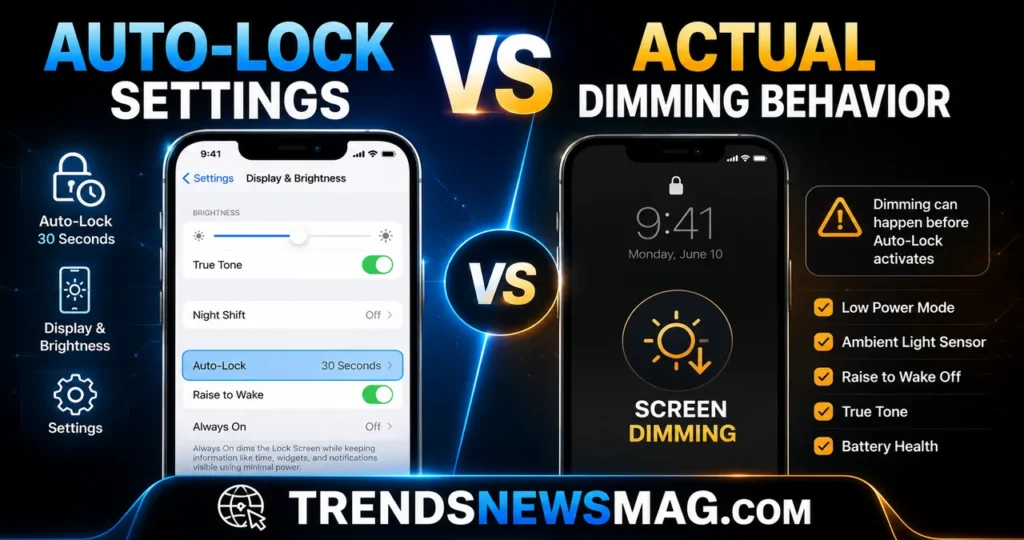
Another frequent point of confusion involves Auto-Lock, the feature that determines how long your screen stays active before locking completely. While Auto-Lock and Auto-Brightness sound similar and live in nearby settings menus, they control entirely different things, yet their symptoms often get conflated in troubleshooting conversations.
Auto-Lock doesn’t gradually dim your screen the way older Android devices or certain laptops do before locking. On iPhone, the screen typically stays at full set brightness right up until it locks, then goes dark almost immediately. However, there are exceptions. During video playback, especially in apps like YouTube, Netflix, or Safari when watching embedded video, iOS can apply what’s sometimes called an idle timer dimming behavior, subtly lowering brightness shortly before Auto-Lock would normally trigger, as a visual cue that inactivity is being detected. This is separate from Auto-Brightness and can absolutely still occur with that setting fully disabled.
If you’re specifically noticing dimming that happens right before your screen locks, rather than dimming that fluctuates throughout normal use, this idle-timer behavior is almost certainly what you’re experiencing. Extending your Auto-Lock duration under Settings, then Display & Brightness, then Auto-Lock, to a longer interval like 5 minutes or Never, can help you determine whether this is the source of your frustration. It’s a small distinction, but understanding it prevents you from chasing the wrong setting entirely.
iOS Software Bugs That Cause Unexpected Dimming
Apple’s software isn’t flawless, and every major iOS release tends to introduce its own small batch of display-related quirks. Historically, versions like iOS 15.4, iOS 16.3, and various point releases within iOS 17 all generated noticeable spikes in user reports describing unexplained brightness fluctuations, including plenty of cases explicitly labeled as iPhone screen dimming with auto brightness off in support forums and Apple’s own community discussion boards.
These bugs typically stem from how iOS caches display preferences during the update process. When your phone updates, brightness-related settings sometimes fail to migrate cleanly, leaving a kind of “ghost” instruction still telling the display to auto-adjust even though the toggle in Settings visibly shows off. This creates a frustrating disconnect between what your settings say and what your screen actually does. It’s not a hallucination or user error; it’s a genuine software inconsistency that Apple has quietly patched in some updates and inadvertently reintroduced in others.
The most reliable fix for this category of bug is a full settings reset rather than simply re-toggling Auto-Brightness. Under Settings, General, Transfer or Reset iPhone, then Reset, you’ll find an option called Reset All Settings. This doesn’t erase your data, photos, or apps, but it does return every system preference, including display and brightness configurations, to factory defaults, which frequently clears out corrupted preference files causing the dimming behavior. After a reset like this, you’ll need to re-enable Wi-Fi passwords and a few personalized settings, but for many users, this single step permanently resolves stubborn dimming that no amount of toggling ever fixed.
Battery Health and Its Role in Screen Brightness Fluctuations
As iPhone batteries age, their ability to sustain peak power output diminishes, and Apple’s Performance Management system, introduced back in iOS 11.3, was designed specifically to prevent unexpected shutdowns on devices with degraded batteries. While this system is primarily known for throttling processor performance, it can also influence display brightness under specific conditions, particularly when your battery health has dropped significantly below its original capacity.
This connection is often overlooked in troubleshooting discussions, but it’s a legitimate contributor to reports of iPhone screen dimming with auto brightness off, especially on devices three years old or older. If your battery health, viewable under Settings, Battery, Battery Health & Charging, shows a maximum capacity below roughly 80 percent, your phone may be applying subtle system-wide power conservation measures during moments of high demand, such as when the CPU and display are both working hard simultaneously, like during gaming or video calls.
“A battery that’s lost significant capacity behaves differently under load, and the operating system compensates in ways that aren’t always obvious to the end user,” notes Apple’s own battery health documentation, which explains the broader principle behind these adaptive behaviors even if it doesn’t call out screen dimming by name specifically. If your device qualifies for a battery replacement based on health percentage, and especially if you’re also noticing shorter battery life or unexpected shutdowns alongside the dimming, a battery swap through Apple or an authorized provider is worth genuinely considering as a root-cause fix rather than another workaround.
Step-by-Step: How to Properly Disable Auto-Brightness on iPhone
It might sound almost too basic to include, but a meaningful percentage of people dealing with iPhone screen dimming with auto brightness off haven’t actually disabled the feature correctly in the first place, largely because Apple has relocated this setting more than once across iOS versions, and outdated instructions floating around the internet send people to the wrong menu entirely.
On any modern iPhone running a current version of iOS, Auto-Brightness is no longer found under the main Display & Brightness settings page, contrary to what many older guides still claim. Apple moved it into the Accessibility menu several years ago. To find and properly disable it, open Settings, scroll down to Accessibility, tap Display & Text Size, then scroll to the very bottom of that page where you’ll see the Auto-Brightness toggle. Switching it off here is the only place in the entire operating system where this specific setting lives.
A lot of frustrated users spend time toggling brightness sliders in Control Center or adjusting settings within the main Display & Brightness page, assuming they’ve disabled auto-adjustment, when in reality they’ve never actually touched the real toggle at all. If you’ve never specifically navigated to Accessibility, then Display & Text Size, to find this switch, it’s worth double-checking right now, because this single step resolves a surprising number of dimming complaints on its own, before any of the deeper troubleshooting above even becomes necessary.
Additional Settings That Secretly Control Brightness
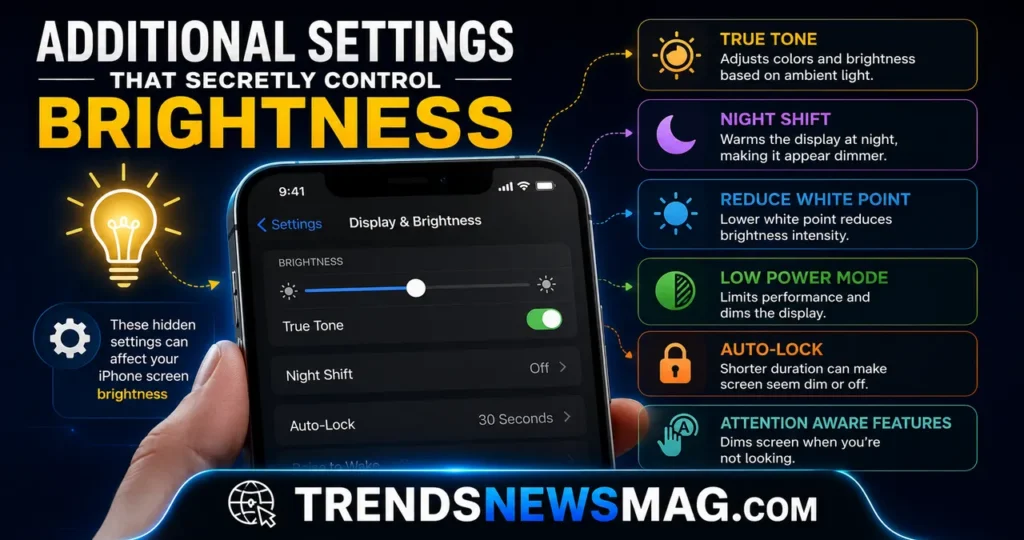
Beyond Auto-Brightness, True Tone, and Low Power Mode, there are a handful of lesser-known settings that quietly influence your screen’s brightness levels, and most users never realize these exist until they go digging specifically because standard fixes aren’t working.
Night Shift, found under Display & Brightness, shifts your display toward warmer tones during scheduled hours, and while it’s primarily a color feature like True Tone, some users report a perceived dimming effect during transition periods. Reduce White Point, buried inside Accessibility, then Display & Text Size, then Increase Contrast, can also make your screen appear dimmer overall by softening the intensity of bright whites across the interface. Meanwhile, Attention Aware Features, available on Face ID-equipped iPhones under Face ID & Passcode settings, can cause your screen to dim specifically when the system believes you’re not looking directly at it, a feature originally designed to conserve battery and reduce distraction.
There’s also a video-specific consideration worth knowing about: certain streaming apps, particularly ones using HDR or Dolby Vision content, can trigger automatic brightness adjustments tied to the video content itself rather than your device settings, a behavior completely separate from anything controlled through iOS system preferences. This is why some users notice dimming exclusively while streaming certain shows or movies but never during regular phone use, and no amount of adjusting Auto-Brightness will change that particular behavior since it originates from the app and content metadata rather than the operating system.
Common Troubleshooting Steps When Dimming Persists
If you’ve already confirmed Auto-Brightness is properly disabled through Accessibility settings, checked for True Tone interference, ruled out Low Power Mode, and the dimming continues, it’s time for a more systematic troubleshooting approach. Below is a practical table outlining the most effective steps in the order most technicians and Apple Support advisors recommend trying them.
| Step | Action | What It Fixes |
|---|---|---|
| 1 | Verify Auto-Brightness is off under Accessibility > Display & Text Size | Confirms the correct setting is disabled |
| 2 | Disable True Tone under Display & Brightness | Removes color-temperature illusions mistaken for dimming |
| 3 | Turn off Low Power Mode in Control Center or Battery settings | Eliminates battery-driven brightness throttling |
| 4 | Restart the iPhone completely | Clears temporary display caching glitches |
| 5 | Check Battery Health percentage | Identifies age-related performance throttling |
| 6 | Reset All Settings (not full reset) | Fixes corrupted preference files from failed updates |
| 7 | Update to the latest iOS version | Applies Apple’s official display bug patches |
| 8 | Test brightness in Safe Mode-style fresh restart | Rules out third-party app interference |
| 9 | Contact Apple Support if dimming persists | Identifies possible hardware-related causes |
Working through this table sequentially, rather than jumping around randomly, tends to save enormous amounts of time. Most users find their answer somewhere between steps two and six, and very few genuinely need to progress all the way to contacting Apple Support, though it’s reassuring to know that option exists as a reliable backstop when everything else has been ruled out.
Comparing iPhone Models and Their Brightness Behavior
Not every iPhone model handles brightness the same way, and understanding these differences helps explain why two people with seemingly identical settings can have completely different experiences with iPhone screen dimming with auto brightness off. Display technology, chip generation, and thermal design all play into this.
iPhones with OLED displays, which includes every iPhone X and newer aside from budget SE models, handle brightness scaling differently than the older LCD-based iPhones. OLED panels can achieve deeper contrast and more granular brightness steps, which sometimes makes subtle dimming more noticeable to the human eye than it would be on an LCD screen, simply because the technology is more responsive and visually precise. Meanwhile, Pro and Pro Max models equipped with ProMotion and adaptive refresh rate technology introduce yet another layer of complexity, since refresh rate adjustments during static content viewing can sometimes create a visual sensation similar to dimming, even though brightness levels haven’t technically changed at all.
Thermal management also varies significantly by chip generation. Newer A-series and M-series chips inside recent iPhones are generally better at managing heat without needing to throttle display brightness as a cooling measure, whereas older devices, particularly the iPhone 11 and iPhone 12 lineups now several years into their lifecycle, are more prone to thermal-triggered brightness reduction during demanding tasks like gaming, navigation with GPS active, or extended camera use in hot environments. If you’re experiencing dimming specifically during resource-intensive activities on an older device, thermal throttling combined with battery aging is very likely playing a role, separate entirely from your Auto-Brightness setting.
When to Consider a Hardware Issue vs Software Setting
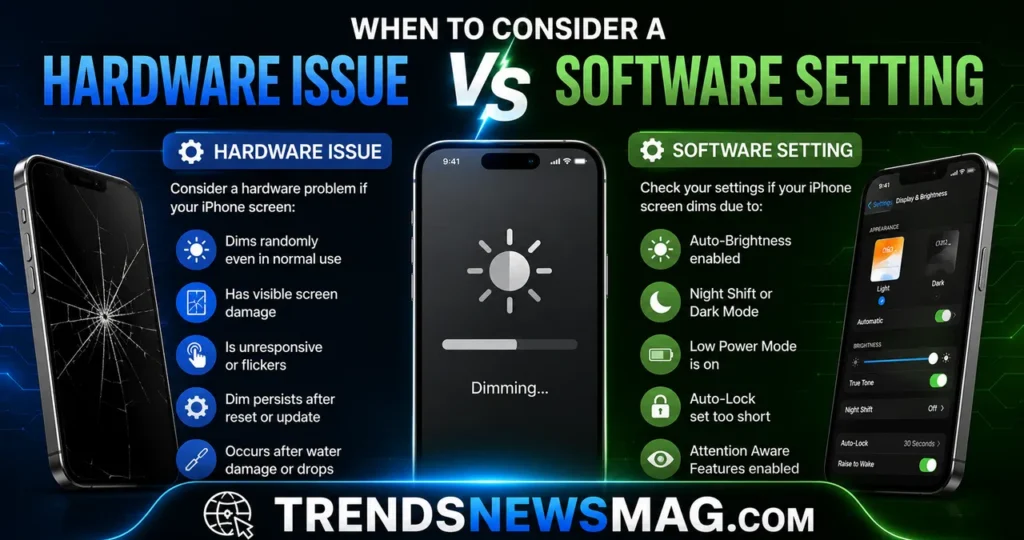
While the overwhelming majority of cases involving iPhone screen dimming with auto brightness off trace back to software settings, battery conditions, or misunderstood features, there’s a smaller but genuine category of cases rooted in actual hardware malfunction, and it’s worth knowing how to distinguish between the two.
Hardware-related dimming tends to present differently than software-driven dimming. It’s often inconsistent in a way that doesn’t correlate with any identifiable trigger, meaning it happens randomly regardless of lighting, battery level, app usage, or time of day. It may also be accompanied by other visual symptoms such as flickering, uneven brightness across different sections of the screen, or a persistent dim appearance that no brightness slider adjustment, not even manually dragging it to maximum in Control Center, can fully correct. If dragging your brightness slider all the way up in Control Center still leaves your screen visibly dimmer than it should be at full brightness, that’s a strong indicator you’re dealing with something beyond software.
Physical damage, even damage not visible to the naked eye, such as impact from a drop that didn’t crack the glass but jarred internal display connectors, can cause these symptoms too. Liquid exposure is another common hidden cause, sometimes triggering brightness irregularities weeks or even months after the actual incident occurred, as corrosion slowly develops on internal components. If you’ve ruled out every software and settings-based explanation covered in this guide and the dimming remains unpredictable and unresponsive to manual adjustment, scheduling a diagnostic appointment at an Apple Store or authorized repair provider is the appropriate next step, since continuing to troubleshoot software settings at that point becomes an exercise in frustration rather than a path toward resolution.
Best Practices for Consistent Screen Brightness
Once you’ve resolved your immediate dimming issue, there are several habits worth adopting to prevent iPhone screen dimming with auto brightness off from becoming a recurring headache down the road. Prevention is considerably less frustrating than repeated troubleshooting, and a few small adjustments go a long way toward long-term consistency.
First, get into the habit of checking Battery Health periodically, particularly once your iPhone passes the two-year mark, since catching declining battery capacity early lets you address power-related brightness quirks before they become disruptive. Second, always review release notes when installing a new iOS update; Apple frequently documents known display issues and their fixes directly within these notes, and being aware of what’s changed helps you understand whether new dimming behavior is expected, temporary, or worth reporting through Feedback Assistant. Third, avoid stacking too many display-altering features simultaneously, Night Shift, True Tone, Reduce White Point, and manual brightness adjustments can interact in ways that create the illusion of erratic dimming even when each individual feature is technically working exactly as designed.
Finally, consider setting a recurring personal reminder to verify your Low Power Mode status if you frequently use your phone throughout long days without charging, since this remains, by a wide margin, the most common real-world explanation behind sudden and unexpected dimming that has nothing to do with your Auto-Brightness preference at all. A quick glance at Control Center before assuming something’s broken can save considerable troubleshooting time. As one veteran iOS beta tester summarized it well, “half of what people call bugs are just features they forgot they turned on.”
Conclusion
Iphone screen dimming with auto brightness off is rarely caused by a single, isolated glitch. More often, it’s the product of several overlapping systems, True Tone, Low Power Mode, thermal management, battery health, idle timers, and occasionally genuine software bugs, all quietly influencing your display simultaneously, independent of that one toggle you assumed controlled everything. Understanding this layered reality is the real key to solving the problem permanently rather than repeatedly toggling the same setting and hoping for a different outcome.
Work through the troubleshooting steps outlined here in order, starting with confirming Auto-Brightness is disabled in the correct menu, checking True Tone and Low Power Mode, and progressing toward a full settings reset or battery health evaluation if the issue persists. For the small percentage of cases rooted in genuine hardware malfunction, don’t hesitate to involve Apple Support directly rather than continuing to chase software solutions indefinitely. With the right diagnostic approach, consistent, predictable screen brightness is absolutely achievable on every modern iPhone.
For further official guidance on iPhone display and brightness settings, you can visit Apple’s support documentation at https://support.apple.com/en-us/HT207864.
FAQs
Why does my iPhone screen dim during video playback even though Auto-Brightness is off?
This typically happens because certain streaming apps and HDR or Dolby Vision content trigger brightness adjustments based on the video content itself rather than your system settings. This behavior originates from the app and video metadata, not from iOS, which means it will continue happening regardless of whether Auto-Brightness is enabled or disabled. It’s a completely separate mechanism from the operating system’s brightness controls, and there’s currently no universal system-level setting that overrides it across every app.
Is iPhone screen dimming with auto brightness off a sign of a dying battery?
It can be, though it isn’t always. Aging batteries with reduced maximum capacity sometimes trigger subtle power conservation measures during high-demand tasks, which can include reduced display brightness alongside other performance adjustments. Checking your Battery Health percentage under Settings, Battery, Battery Health & Charging is the quickest way to determine whether battery degradation is a contributing factor, and if your capacity has dropped significantly below its original rating, a replacement may resolve the issue entirely.
Where exactly is the Auto-Brightness toggle located on newer iPhones?
Apple moved this setting away from the main Display & Brightness menu several years ago, and it now lives under Settings, then Accessibility, then Display & Text Size, scrolled all the way to the bottom of that page. Many outdated online guides still reference the old location, which leads to a lot of unnecessary confusion when users can’t find the toggle where they expect it to be.
Can a software update actually cause iPhone screen dimming with auto brightness off?
Yes, this has happened across several past iOS versions, where updates occasionally failed to properly migrate display preferences, leaving behind conflicting system instructions despite the visible toggle showing the correct off position. Performing a Reset All Settings, which doesn’t delete personal data, often resolves this specific type of bug by clearing out corrupted preference files left behind during a flawed update process.
Does disabling True Tone help fix unexpected dimming issues?
In many cases, yes, because True Tone adjusts color temperature rather than actual brightness, and this shift is frequently mistaken for dimming, especially when moving between rooms with different lighting conditions. Turning off True Tone alongside Auto-Brightness eliminates this particular source of visual confusion and gives you a much clearer, consistent baseline for evaluating whether genuine brightness fluctuations are still occurring.
Should I be worried if brightness dimming happens randomly with no clear pattern?
Random, unpredictable dimming that doesn’t correlate with battery level, lighting, or specific apps is worth paying closer attention to, particularly if manually dragging your brightness slider to maximum doesn’t fully resolve it. This pattern can indicate a hardware-related issue rather than a settings-based one, and if you’ve already worked through the standard software troubleshooting steps without success, scheduling a diagnostic check with Apple Support or an authorized repair provider is a reasonable and worthwhile next step.
Trending Today: Why Technology Cannot Replace Humans: The Real Reasons Human Skill, Judgment, and Heart Still Win
Read more: BinTracker Software