How to Sideload Apps on Smart TVs Safely: A Complete Step-by-Step Guide for Every Platform

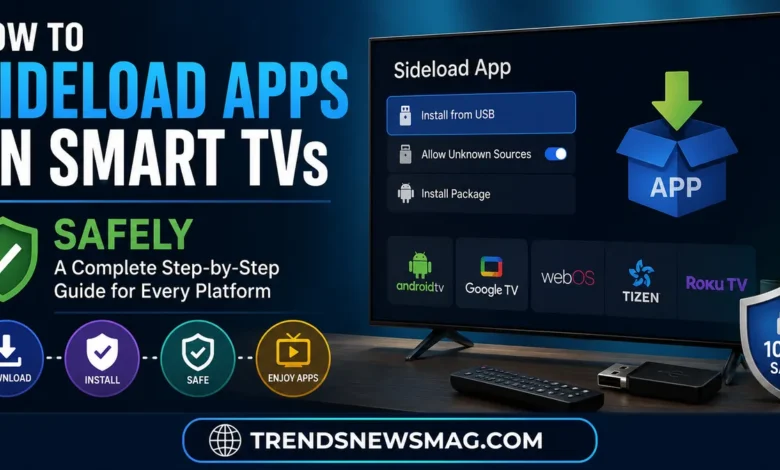
There’s a specific kind of frustration that comes from browsing your smart TV’s app store, knowing exactly what app you want, and discovering it simply isn’t there. Maybe it’s a regional streaming service that hasn’t launched in your country yet. Maybe it’s a niche media player, a retro gaming emulator, or a tool your workplace uses for screen casting that never made it past the app store’s approval process. Whatever the reason, this gap between what your TV can technically run and what its official store actually offers is exactly why so many people start looking into how to sideload apps on smart TVs in the first place.


Sideloading isn’t some shady hacker technique reserved for tech wizards. At its core, it’s simply the process of installing an application from a source other than the official app store — using a file you download directly, transfer from another device, or push through a developer tool. Android has supported this kind of installation flexibility since its earliest versions, and that openness carried over into Android TV, Google TV, Amazon Fire TV, and a handful of other smart TV platforms that share similar underlying architecture. Even platforms that don’t officially support it, like certain Samsung and LG models, have workarounds that developers and enthusiasts have documented extensively over the years.
The word “safely” in this guide isn’t just a throwaway qualifier, though. Sideloading genuinely does carry risk if you approach it carelessly, and understanding exactly where those risks live — and how to avoid them — is the difference between a smooth experience and a TV full of malware, broken permissions, or bricked firmware. This guide walks through everything: which platforms actually support sideloading, the tools you’ll need, step-by-step instructions for the most common devices, how to vet an APK file before installing it, and the mistakes that trip up even experienced users. By the end, you’ll have a genuinely complete picture of how to sideload apps on smart TVs safely, without guessing or crossing your fingers.
What Sideloading Actually Means and Why People Do It
Sideloading, in the simplest terms, is installing software outside of an official app marketplace. On a smart TV, that typically means installing an APK file — Android’s application package format — directly onto the device rather than downloading the app through the built-in store. This is fundamentally different from jailbreaking or rooting, which modify the operating system’s core permissions. Sideloading usually works within the existing permission structure of the device, which is one of the reasons it’s considerably safer than more invasive modification methods, provided you follow the right precautions.
People turn to sideloading for a wide range of legitimate reasons. Regional content restrictions are a huge driver — a streaming app might be fully available in the United States but geographically blocked from the official store in other countries, even though the app itself works perfectly fine once installed. Developers and IT professionals sideload apps constantly during testing phases, before those apps ever reach public app store approval. Enthusiasts sideload media server clients like Plex alternatives, file managers, or specialized players that support obscure video codecs the built-in apps don’t handle well. And plenty of people simply want access to an older version of an app that a forced update ruined, since app stores rarely let you roll back versions on your own.
It’s worth being upfront about something here too: sideloading occasionally gets lumped in with piracy discussions online, since some sideloaded apps are indeed built around unauthorized content streaming. This guide isn’t about that, and won’t pretend otherwise — the techniques below are the same regardless of what you’re installing, but the legality and safety of the app itself is entirely your responsibility to evaluate. A tech journalist covering this topic once put it well, noting that “the installation method is neutral; what you choose to install on top of it is where the real risk and responsibility live.” That distinction matters, and it’s one worth keeping in mind throughout this entire process.
Which Smart TV Platforms Actually Support Sideloading
Not every smart TV operating system treats sideloading the same way, and knowing where your specific device falls on that spectrum will save you a lot of wasted effort. Android TV and Google TV, which power devices from Sony, TCL, Hisense, Philips, and the Chromecast with Google TV, generally support sideloading through developer options that come baked into the operating system itself. Amazon Fire TV, built on a heavily modified fork of Android, supports it even more openly, with a dedicated setting specifically labeled for allowing installations from unknown sources — Amazon has clearly designed Fire TV with this flexibility in mind, likely because so much of its user base already sideloads apps like alternative launchers or region-locked streaming clients.
Roku sits at the opposite end of the spectrum. Its operating system is a closed, proprietary platform that doesn’t run standard Android APK files at all. Similarly, Apple’s tvOS ecosystem maintains strict app store controls (read our complete Apple TV Guide for ecosystem details), making standard APK sideloading non-applicable. Roku has never officially supported traditional sideloading in the way Android-based devices do. There is a developer mode available for Roku devices, primarily intended for actual app developers testing their own channels before public submission, but it’s far more limited and technical than the equivalent process on Android TV. If your household primarily uses Roku hardware, most conventional sideloading guides simply won’t apply to you.
Samsung’s Tizen OS and LG’s webOS occupy a middle ground that’s more complicated than either extreme. Neither platform natively supports installing arbitrary third-party apps the way Android TV does, but both have official developer modes intended for app testing, and a determined community of enthusiasts has documented workarounds for installing custom content through USB drives and specialized development tools. These methods tend to be more fragile, more prone to breaking after firmware updates, and generally recommended only for users comfortable troubleshooting on their own. If you’re specifically shopping for a smart TV with sideloading flexibility as a priority, check out our roundup of the Best Streaming Devices for 4K HDR TVs to pick hardware with built-in Android support. Android TV, Google TV, or Fire TV devices will give you a dramatically smoother experience than Tizen or webOS models. <br>
| Platform | Native Sideloading Support | Difficulty Level | Best Method |
|---|---|---|---|
| Android TV / Google TV | Yes, built-in | Easy | Downloader app or ADB |
| Amazon Fire TV | Yes, built-in | Easy | Downloader app |
| Samsung Tizen | Limited, developer mode only | Hard | IDE + USB deployment |
| LG webOS | Limited, developer mode only | Hard | IDE + USB deployment |
| Roku | Not officially supported | Very Hard | Developer channel mode |
| Apple TV (tvOS) | No, closed ecosystem | Not applicable | N/A |
Understanding the Real Risks Before You Start
Before touching a single setting on your TV, it’s worth having an honest conversation about what can actually go wrong, because that understanding is the entire foundation of doing this safely. The single biggest risk when you sideload apps on smart TVs comes from the source of the APK file itself, not from the act of sideloading in general. Legitimate APK repositories exist and are widely trusted by the developer community, but plenty of shady websites package malware, adware, or spyware inside APK files disguised as popular apps, counting on users who don’t verify what they’re downloading.
Malware delivered through a sideloaded app can range from mildly annoying — persistent pop-up ads that hijack your TV’s interface — to genuinely dangerous, including apps that quietly harvest data from your home network, monitor what you watch, or use your TV’s processing power and internet connection as part of a botnet without your knowledge. Smart TVs are particularly attractive targets for this kind of abuse because most people never think to run security scans on their television the way they might on a laptop or phone, and TVs often stay connected to home networks for years without password changes or firmware updates.
Beyond malware specifically, there’s a more mundane but still frustrating category of risk: app instability. Sideloaded apps aren’t reviewed the way official app store submissions are, which means compatibility issues, crashes, and conflicts with your TV’s existing software are considerably more common. In rare cases, a poorly coded app can cause boot loops or interface glitches serious enough to require a factory reset. None of this means sideloading is inherently dangerous when done correctly — millions of people do it safely every single day — but it does mean the vetting process you use before installing anything matters enormously, and that’s exactly what the next several sections focus on.
Preparing Your TV and Network Before Sideloading
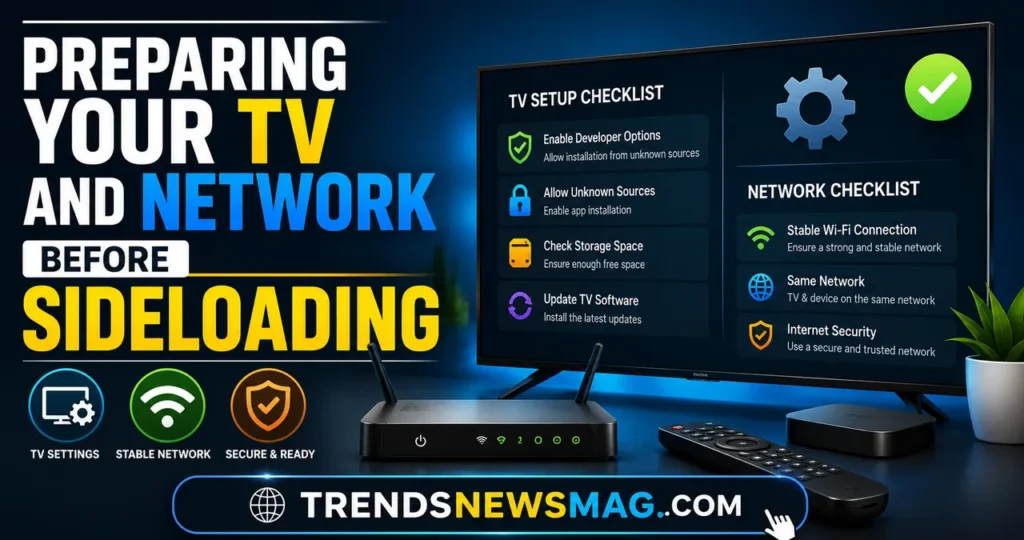
Getting your environment ready properly before you attempt to sideload apps on smart TVs will save you from most of the headaches people run into. Start with a basic housekeeping step that’s easy to overlook: check that your TV’s firmware is fully updated. Manufacturers regularly patch security vulnerabilities through these updates, and installing third-party apps on outdated firmware increases your exposure to known exploits that a current update would have already closed off.
Next, take a hard look at your home network setup. If your router supports guest networks or IoT-specific network segmentation, consider placing your smart TV on a separate network segment from your primary devices — laptops, phones, and anything storing sensitive personal information. This isn’t strictly necessary for casual sideloading, but it’s a genuinely smart layer of protection, especially if you plan to experiment with multiple third-party apps over time rather than installing just one trusted tool. Network segmentation means that even in a worst-case scenario where a sideloaded app turns out to be compromised, it has a much harder time reaching your other devices.
You’ll also want to have a way to transfer files onto your TV, and there are generally three practical options depending on your device and comfort level. A USB flash drive works universally across nearly every platform that supports sideloading, and it’s the simplest method for beginners since it doesn’t require any command-line tools. The Downloader app, available on both Fire TV and most Android TV devices, lets you type in a direct URL and download an APK straight to the device over Wi-Fi, which is faster and more convenient once you’re comfortable with it. Finally, Android Debug Bridge, commonly known as ADB, gives more advanced users a command-line method to push apps from a computer to the TV over the same local network — more powerful, but with a steeper learning curve that isn’t necessary for most casual users.
How to Sideload Apps on Android TV and Google TV Devices
Android TV and Google TV represent the most straightforward starting point for this entire process, since Google built genuine flexibility into the platform from day one. Begin by navigating to your device’s settings menu, then into the “About” or “Device Preferences” section, and locate the build number. Tapping the build number seven times in a row unlocks Developer Options, a hidden menu that exists on essentially every Android-based device, TVs included. This step alone trips up a surprising number of first-time users simply because the option is intentionally hidden from casual browsing.
Once Developer Options appears in your settings menu, open it and enable “Unknown Sources” or “Install Unknown Apps,” depending on your specific TV’s software version. Some devices ask you to grant this permission on a per-app basis instead, meaning you’ll specifically authorize whichever app you’re using to install APK files — commonly the Downloader app or a file manager — rather than granting a blanket system-wide permission. The per-app method is actually the safer of the two approaches, since it limits which apps have installation privileges rather than opening the door to anything on your device.
With that permission granted, install the Downloader app from the official Google Play Store or Amazon Appstore, since it’s the most reliable, widely trusted tool for this specific purpose. Open Downloader, type in the direct download URL for the APK file you want to install — never a shortened or redirected link from an untrustworthy source — and let it download directly to your TV. Once the download finishes, Downloader will prompt you to install the app automatically. Confirm the installation, wait for it to complete, and the new app will appear in your apps list just like anything downloaded through the official store. This entire process typically takes less than five minutes once you’ve done it a single time, and it’s genuinely the gold standard method that most guides reference when explaining how to sideload apps on smart TVs across Android-based platforms.
How to Sideload Apps on Amazon Fire TV
Fire TV’s process closely mirrors Android TV’s, which makes sense given their shared underlying architecture, but Amazon has streamlined a few steps in ways worth knowing about specifically. From your Fire TV home screen, navigate to Settings, then My Fire TV, then Developer Options. If you don’t see Developer Options listed, go to My Fire TV, select About, then click on your device’s name repeatedly — usually seven times — until a message confirms you’re now a developer, unlocking the hidden menu the same way it works on standard Android TV devices.
Inside Developer Options, toggle on “Apps from Unknown Sources” and confirm the warning prompt that appears. Amazon’s warning language here is intentionally direct about the risks, and it’s worth actually reading rather than dismissing reflexively, since it reinforces exactly the kind of caution this entire guide is built around. From there, the process matches Android TV closely: install the Downloader app from the Amazon Appstore, which is already preloaded on many Fire TV devices or available as a free download in seconds if it isn’t.
One Fire TV-specific tip worth knowing: Amazon assigns every Downloader installation a unique code, displayed on-screen, that you can enter at the Downloader website from a separate computer to remotely manage bookmarks and frequently used download links. This makes repeated sideloading noticeably more convenient if you’re someone who regularly installs updated versions of the same handful of apps, rather than typing out long URLs on your remote control every single time. Fire TV also benefits from Amazon’s relatively frequent security patches, which is another reason to keep your device’s software current before and after you sideload apps on smart TVs running this particular platform.
How to Sideload Apps Using ADB for Advanced Users
Android Debug Bridge offers a more powerful, more flexible sideloading method that becomes genuinely useful once you’re managing multiple apps or troubleshooting installation issues that the Downloader app can’t resolve on its own. ADB requires installing a small set of platform tools on a computer, available directly from Google’s official Android developer website, and connecting to your TV over your shared local Wi-Fi network rather than through a physical USB cable in most modern setups.
To get started, enable Developer Options on your TV the same way described above, then specifically toggle on “USB Debugging” or “Network Debugging,” depending on your exact device. Note the TV’s local IP address, visible in your network settings menu. On your computer, open a command line interface, navigate to the folder containing your ADB platform tools, and run a connect command targeting that IP address, something like “adb connect” followed by the TV’s IP and port number. Your TV screen should display a prompt asking you to authorize the connection — always confirm this only if you initiated the connection yourself, since an unexpected authorization prompt could indicate someone else attempting to access your device.
Once connected, installing an app becomes as simple as running a single install command followed by the file path to your APK on your computer. ADB handles the transfer and installation automatically, reporting success or failure directly in the command line, which is genuinely useful for troubleshooting compared to the more opaque process through Downloader. This method particularly shines when you need to sideload apps on smart TVs in bulk, reinstall a specific app version after testing multiple releases, or diagnose exactly why an installation is failing rather than just seeing a generic error message on your TV screen.
Sideloading on Samsung Tizen and LG webOS
Samsung and LG have built considerably more locked-down ecosystems compared to Android-based smart TVs, and understanding why matters before attempting either platform’s workaround. Both companies prioritize a curated, controlled app experience, partly for security reasons and partly for business reasons tied to their own content partnerships and advertising revenue. That said, both platforms do offer legitimate developer modes intended for app testing before official submission, and dedicated communities have adapted these tools for personal sideloading purposes over the years.
For Samsung Tizen devices, the process requires installing the Tizen Studio development environment on a separate computer, enabling Developer Mode directly on the TV through its apps menu by long-pressing on a specific hidden interface element, and then connecting the TV to your computer over the same local network using an IP address and port configuration similar to the ADB process described earlier. Once connected, Tizen Studio allows you to install a compatible application package — Tizen uses its own package format rather than standard Android APKs, which limits your options considerably compared to true Android TV devices.
LG’s webOS follows a broadly similar pattern, requiring the webOS TV SDK installed on a computer, Developer Mode enabled through a dedicated app available in LG’s Content Store, and a similar network-based connection process for pushing packaged applications onto the TV. Both of these processes are genuinely more technical and less forgiving than their Android TV counterparts, and they’re honestly best suited for developers or particularly determined enthusiasts rather than casual users just trying to sideload apps on smart TVs for the first time. If you own a Samsung or LG TV and find this process frustrating, know that it’s not you — these platforms were simply never designed with casual sideloading as a priority the way Android TV and Fire TV were. An easier alternative is attaching an external box; see How to Setup Apple TV on Smart TVs for a smoother plug-and-play experience.
How to Verify an APK Is Safe Before Installing It
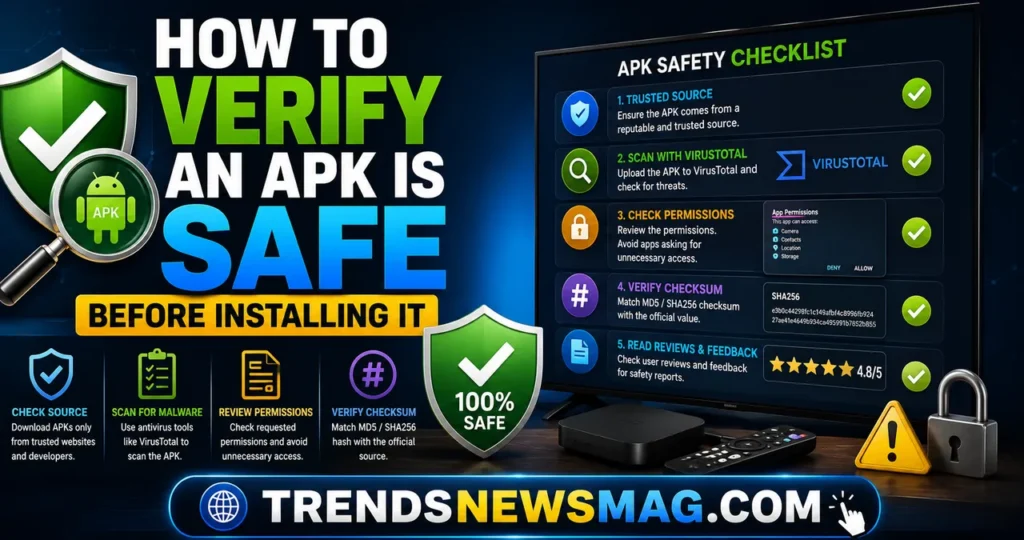
This is, without question, the single most important section in this entire guide, because the installation method itself matters far less than what you’re actually choosing to install. Before downloading any APK file, start by checking the source. Reputable, well-known repositories like APKMirror have built strong reputations specifically around verifying that uploaded files match official developer signatures, meaning the app hasn’t been tampered with or repackaged with hidden malicious code layered on top of the legitimate app.
Once you’ve downloaded a file but before installing it, running it through a malware scanner is a genuinely worthwhile extra step, even if it adds a few minutes to the process. Uploading the APK to a service like VirusTotal, which scans files against dozens of different antivirus engines simultaneously, gives you a quick consensus read on whether security researchers have flagged anything suspicious inside that specific file. It’s not a perfect system — brand-new malware can sometimes slip past detection temporarily — but it catches the overwhelming majority of known threats and takes only a minute or two to run.
Pay close attention to the permissions an app requests during installation as well. A simple video player app requesting access to your contacts, location, or microphone should immediately raise a red flag, since there’s no legitimate functional reason a media player would need that kind of access. Legitimate developers generally request only the permissions their app genuinely needs to function, and unusual permission requests are one of the clearest, most accessible warning signs available to everyday users without any technical background at all. As one cybersecurity researcher put it during an interview on this exact topic, “permission requests are basically an app telling you what it plans to do with your device — the trick is actually reading them instead of tapping through automatically.”
Finally, check the file size and compare it against what you’d reasonably expect. Malware is sometimes bundled inside APK files that are suspiciously larger or smaller than the legitimate version of that same app, since injected code changes the package size in ways attentive users can sometimes catch just by comparing numbers before installing. None of these steps take more than a few extra minutes combined, and together they dramatically reduce your risk profile every single time you sideload apps on smart TVs going forward.
Common Mistakes That Compromise Sideloading Safety
Even people who understand the theory behind safe sideloading regularly trip themselves up on a handful of predictable, avoidable mistakes. The most common one by far is downloading APK files from search engine results without checking the actual domain hosting the file. Malicious actors have gotten increasingly sophisticated at search engine optimization specifically designed to push fake or infected app downloads above legitimate sources, meaning the top search result isn’t automatically the safest or most trustworthy option available.
Another frequent mistake involves leaving “Unknown Sources” or “Install Unknown Apps” permissions permanently enabled system-wide, rather than granting installation permission on a per-app basis or disabling it again once you’ve finished sideloading whatever you needed. Leaving this door open indefinitely increases your ongoing exposure to any future malicious app that manages to trick you, or anyone else with physical access to your remote, into attempting an unauthorized installation down the road. It takes only a few seconds to re-enable when you actually need it again, so there’s rarely a good reason to leave it active permanently.
People also frequently skip updating sideloaded apps entirely, since these apps don’t receive automatic updates through an official store the way conventionally installed apps do. This means security vulnerabilities discovered after your initial installation simply never get patched unless you actively remember to check for and manually reinstall a newer version yourself. Setting a recurring personal reminder to periodically check for updates on any app you’ve sideloaded is a small habit that meaningfully reduces long-term risk, particularly for apps handling sensitive functionality like media server credentials or network configuration tools.
Finally, a surprising number of people ignore basic backup practices before making significant changes to their TV’s software environment. Before you sideload apps on smart TVs, particularly through more advanced methods like ADB, it’s worth noting down your existing app list, any custom settings you’ve configured, and confirming you know how to perform a factory reset if something goes seriously wrong. This isn’t meant to sound alarming — serious problems are genuinely rare when you follow the vetting steps outlined above — but having that safety net costs you nothing and can save considerable frustration in the rare case something doesn’t go as planned.
Legal and Ethical Considerations Worth Understanding
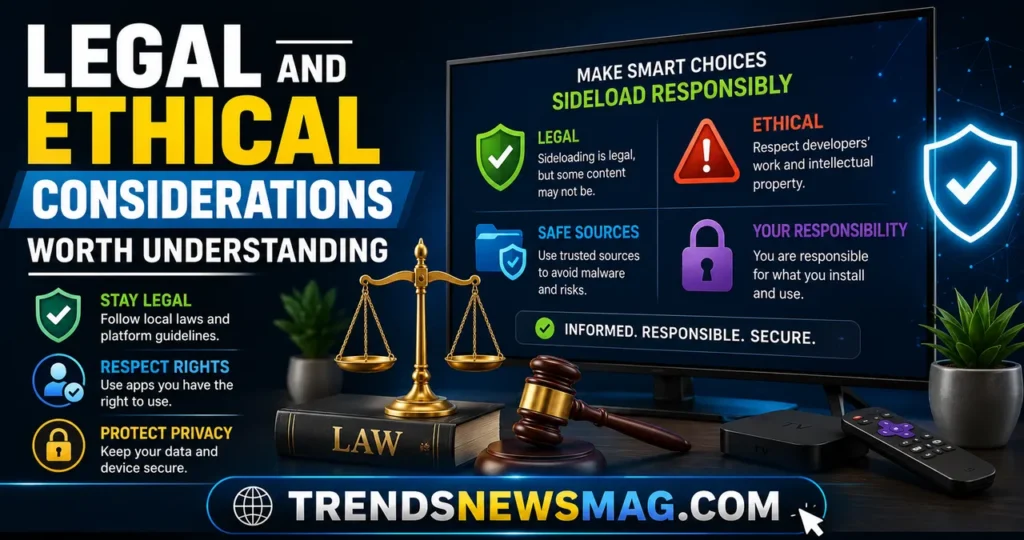
Sideloading itself sits on solid legal ground in most jurisdictions, since installing software you have legitimate rights to use, from a source other than an official app store, isn’t illegal on its own. Regional streaming apps, legitimate developer testing tools, and open-source software distributed outside official app stores are all perfectly normal, uncontroversial reasons to sideload apps on smart TVs, and none of that activity raises any legal concerns whatsoever for the vast majority of users.
Where things get genuinely murky is around content and copyright, particularly with certain third-party media player apps that facilitate access to copyrighted content without proper licensing. This guide deliberately hasn’t recommended or named any specific apps of that variety, and won’t, because the legal landscape around them varies significantly by country and continues evolving through ongoing litigation. If you’re considering sideloading any app specifically marketed around free access to premium content that would normally require a paid subscription, it’s worth researching the legal standing of that specific app in your particular country before proceeding, since enforcement approaches genuinely differ across regions.
Terms of service violations represent another consideration separate from strict legality. Some device manufacturers technically prohibit sideloading in their terms of service, even on platforms where the technical capability exists, and doing so could theoretically void certain warranty protections, though enforcement of this in practice is genuinely rare for standard sideloading activity. Reading through your specific device’s warranty terms takes only a few minutes and gives you a clear, accurate picture of where you stand before you commit to modifying your TV’s software environment in any significant way.
Related Streaming & TV Guides:
- Complete Apple TV Platform & Ecosystem Guide
- Best Streaming Devices for 4K HDR TVs (2026)
- Apple TV 4K vs Roku Ultra Comparison
- How to Setup Apple TV on Smart TVs
- How to Fix Apple TV Remote Not Working (15 Proven Fixes)
Conclusion
Learning how to sideload apps on smart TVs safely ultimately comes down to combining the right technical process for your specific platform with genuinely careful source verification before you install anything at all. Android TV, Google TV, and Fire TV devices offer the smoothest, most beginner-friendly experience thanks to built-in developer options and tools like the Downloader app, while Samsung and LG televisions require considerably more technical effort through official developer environments, and Roku remains largely closed off to traditional sideloading altogether. Regardless of which platform you’re working with, the safety of the entire process hinges far more on where you source your APK files and how carefully you vet them than on the installation method itself.
Treat every sideloaded app with the same healthy skepticism you’d apply to downloading unfamiliar software on a computer, check permissions before granting them, keep your firmware updated, and disable unknown source permissions when you’re not actively using them. Follow that discipline consistently, and sideloading becomes a genuinely useful, low-risk way to unlock functionality your TV’s official app store was never going to offer on its own. For deeper technical background on how Android’s application permission and packaging system works under the hood, Android’s official developer documentation remains one of the most authoritative and freely available resources on the subject.
FAQs
Is it legal to sideload apps on smart TVs?
Yes, sideloading itself is legal in the overwhelming majority of countries, since installing software from a source other than the official app store isn’t inherently against any law. What matters far more is the specific app you’re installing and whether it facilitates access to copyrighted content without proper licensing, which is a separate legal consideration entirely from the sideloading process itself. As long as you’re installing legitimate apps, regional versions of services you’re entitled to use, or developer tools, sideloading remains a technically and legally straightforward process on supported platforms.
Will sideloading void my smart TV’s warranty?
In most cases, no, particularly on platforms like Android TV and Fire TV where sideloading capability is intentionally built into the operating system by the manufacturer themselves. Some manufacturers include broader terms of service language that technically discourages unofficial modifications, but enforcement against standard sideloading activity is genuinely uncommon in practice. Reading your specific TV manufacturer’s warranty documentation is the most reliable way to confirm your standing, since policies do vary somewhat between brands and regions.
Can sideloading damage or brick my smart TV?
It’s rare, but not impossible, particularly if you’re using more advanced methods like ADB incorrectly or installing poorly coded apps that conflict with your TV’s existing software in unexpected ways. Following the vetting steps outlined earlier in this guide, checking permissions, scanning files, and sourcing APKs from reputable repositories dramatically minimizes this risk. Most people who sideload apps on smart TVs following proper safety precautions never encounter serious issues, and the rare problems that do occur are typically resolved through a straightforward factory reset.
Which smart TV platform is easiest for sideloading apps safely?
Amazon Fire TV and Android TV or Google TV devices are widely considered the easiest and most beginner-friendly platforms for this process, largely because both operating systems include built-in developer options specifically designed to support installations from outside the official app store. The Downloader app streamlines the entire process on both platforms into just a few taps, making it accessible even for users with limited technical experience. Samsung Tizen and LG webOS, by comparison, require considerably more technical setup and are better suited to more experienced users.
Do I need antivirus software on my smart TV if I sideload apps?
While dedicated antivirus software for smart TVs isn’t as mature or widely available as it is for computers and phones, taking equivalent precautions manually — scanning APK files through a service like VirusTotal before installation, checking requested permissions carefully, and sourcing files only from reputable repositories — accomplishes much the same protective goal. Some Android TV devices do support installing mobile-oriented security apps that offer basic scanning functionality, which can add an extra layer of protection if you sideload apps on smart TVs regularly rather than as a one-time task.
Related Guides: