Gaming on Linux used to be a punchline. Ask anyone who tried it a decade ago and they’ll tell you stories about broken drivers, missing titles, and hours lost chasing dependency errors just to get a single game running at a stable frame rate. That world is gone. Valve’s Steam Deck quietly proved that a Linux-based system could run thousands of Windows-only titles without the average person even noticing they weren’t on Windows anymore, and that shift rippled outward into the desktop Linux community in a big way. Today, choosing the best Linux distro for gaming isn’t about whether Linux can handle modern titles — it clearly can — it’s about which flavor of Linux fits your hardware, your patience for tinkering, and your appetite for bleeding-edge features versus rock-solid stability.


This guide exists because the internet is full of outdated “top 5 gaming distros” listicles that recycle the same five paragraphs without actually explaining why one distro beats another for a specific kind of gamer. We’re going deeper. We’ll walk through what actually makes a distro good for gaming, compare the heavyweights in detail, talk about GPU drivers (the single biggest source of gaming headaches on Linux), and give you a clear, practical recommendation based on your own situation rather than a generic ranking. Whether you’re a total beginner nervous about leaving Windows behind or a seasoned tinkerer looking to squeeze every last frame out of your rig, there’s a real answer here for you.
What Actually Makes a Linux Distro Good for Gaming
Before ranking anything, it helps to understand the criteria that separate a genuinely good gaming distro from one that merely runs games in a technical sense. The first and most important factor is driver support, particularly for NVIDIA graphics cards. NVIDIA’s proprietary drivers have historically been more troublesome to install and maintain on Linux than AMD’s open-source Mesa drivers, so a distro that handles this friction gracefully — either through pre-installed drivers, an easy graphical installer, or clear documentation — immediately has an edge. AMD users have an easier time across almost every distro because the open-source amdgpu driver ships with the kernel itself, but NVIDIA remains the market leader in dedicated GPUs, so this factor alone shapes a huge portion of the gaming Linux conversation.
The second factor is how well the distro integrates with Valve’s Proton compatibility layer, which is the technology that allows most Windows games to run on Linux through Steam. Some distros bundle Proton-GE (a community-enhanced fork with extra compatibility fixes) by default or make it trivially easy to install through tools like ProtonUp-Qt. Others leave you to figure it out yourself. A distro that treats Proton as a first-class citizen, rather than an afterthought, saves new users an enormous amount of frustration. Related to this is kernel version. Newer kernels generally include better hardware support, improved scheduling for gaming workloads, and performance patches that can meaningfully affect frame times, so distros that ship recent kernels — or make kernel updates painless — tend to perform better in real-world testing.
Package management philosophy matters more than most beginners realize. Rolling-release distros like Arch Linux and its derivatives receive updates to game-critical components — Mesa, the NVIDIA driver, Wine, Proton — almost as soon as they’re released upstream, which is fantastic when a new game needs a driver fix that just landed. Point-release distros like Ubuntu or Fedora batch these updates on a schedule, trading a bit of bleeding-edge performance for predictability and fewer surprises. Neither approach is objectively better; it depends on whether you’d rather have day-one compatibility for a new AAA release or a system that just works without you thinking about it.
Finally, community and documentation size cannot be overstated. When something breaks at 11 p.m. and you desperately want to finish a raid or a ranked match, the size and activity level of a distro’s community determines how fast you’ll find a fix. Ubuntu and its derivatives benefit enormously here simply because so many guides, forum posts, and Stack Exchange answers exist for Debian-based systems. Arch-based distros benefit from the legendary Arch Wiki, arguably the best piece of technical documentation in the entire open-source world, which explains why so many gaming-focused distros build on Arch even when they present a friendlier face to the user.
Steam, Proton, and Why Linux Gaming Finally Works
It’s worth pausing to explain why this entire conversation is even possible now. For years, gaming on Linux meant relying on Wine, a compatibility layer that translates Windows API calls into something Linux can understand, and native Linux ports, which were rare and often poorly optimized. Valve changed the equation in 2018 by launching Proton, a fork of Wine specifically tuned for gaming, bundled directly into Steam. Suddenly, installing a Windows-only game on Linux became as simple as ticking a checkbox in Steam’s settings and clicking “Play.” The results weren’t perfect at first, but the trajectory was unmistakable.
ProtonDB, a community-run database that tracks compatibility reports for thousands of games, has become the de facto reference point for anyone choosing the best linux distro for gaming and wondering if their favorite titles will actually run. As one longtime contributor to the ProtonDB community put it in a widely shared forum post, “the gap between native and Proton performance has closed so much that for most players it simply doesn’t matter anymore.” That sentiment captures where things stand today: outside of games with aggressive kernel-level anti-cheat — a genuine and still-unsolved sticking point we’ll cover later — the vast majority of the Steam library runs comparably to Windows, and in some cases even better, thanks to Proton’s more efficient shader caching and DXVK translation layer for Direct3D calls.
This context matters because it explains why distro choice today is less about “can I game on Linux at all” and more about optimizing the experience. Every distro discussed in this guide can run Steam and Proton. The differences lie in convenience, driver freshness, pre-configured tweaks, and how much manual setup you’re willing to tolerate before your first gaming session.
Pop!_OS: The Beginner-Friendly Powerhouse
Pop!_OS, developed by System76, has earned a reputation as one of the most approachable entry points for anyone switching from Windows specifically to game. Built on Ubuntu but reworked with a custom GNOME-based desktop and a genuinely excellent installer, Pop!_OS offers something few distros bother with: a dedicated NVIDIA ISO. Instead of installing the base system and then wrestling with proprietary drivers afterward, NVIDIA users can download an image that ships with the correct drivers baked in from the very first boot. For anyone who has ever spent an evening fighting a black screen after a driver update, this alone is worth the price of admission.
Beyond driver convenience, Pop!_OS includes a built-in tiling window manager that power users appreciate for managing multiple game launchers, Discord, and browser windows without constant alt-tabbing chaos. System76 also maintains their own kernel PPA, which means Pop!_OS users often get access to newer kernels faster than stock Ubuntu users, translating to better hardware support for the latest GPUs and peripherals. The distro strikes a careful balance: it’s stable enough for daily use and serious productivity work, yet current enough that gaming performance rarely feels like an afterthought.
The tradeoff is that Pop!_OS, being Ubuntu-based, isn’t as bleeding-edge as Arch derivatives when it comes to Mesa and Proton-GE versions. If a brand-new game ships on release day requiring a driver fix that landed in Mesa two days ago, Pop!_OS users might wait slightly longer than Arch users to get it through official channels — though manual installation of newer components is always possible for those comfortable with the terminal. For the overwhelming majority of gamers, though, this is a minor and rarely-felt limitation rather than a dealbreaker.
Bazzite: Purpose-Built for Gaming from the Ground Up
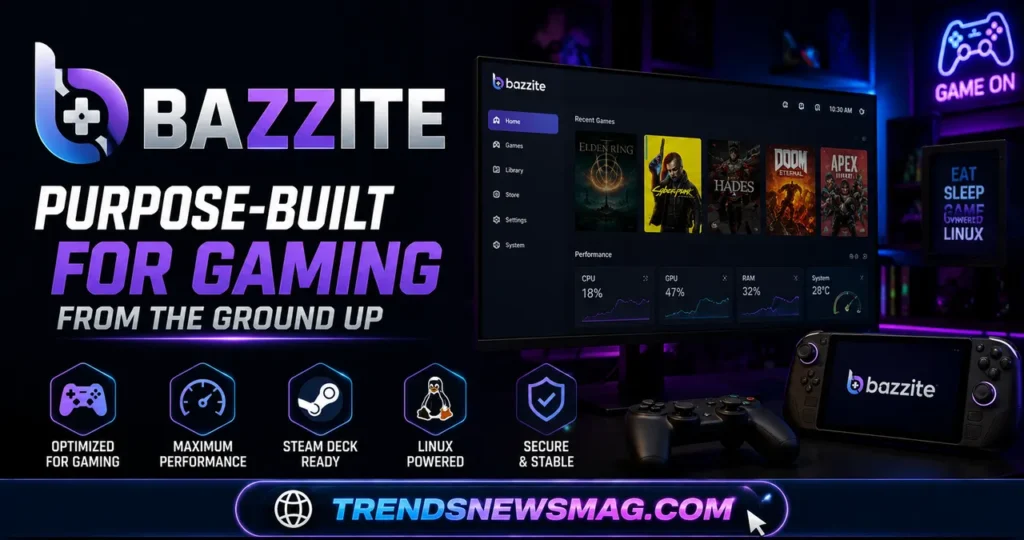
If Pop!_OS is the friendly generalist, Bazzite is the specialist. Built on Fedora’s immutable Atomic desktop technology, Bazzite was designed from day one with a singular mission: replicate and improve upon the Steam Deck experience on any hardware, from handheld gaming PCs to full desktop rigs. It ships with Steam, Lutris, various emulation front-ends, and gaming-optimized kernel tweaks pre-installed, meaning you can go from a fresh install to launching your first game in under fifteen minutes.
What sets Bazzite apart technically is its immutable base image. Rather than a traditional package-based system where individual components can be updated independently (and potentially break each other), Bazzite uses OCI container images to deliver atomic updates — the entire system image updates or rolls back as a single unit. This dramatically reduces the risk of a driver update breaking your desktop environment, a scenario that has haunted Linux gamers on traditional distros for years. If an update causes problems, rolling back to the previous working image takes one command and a reboot, rather than hours of dependency archaeology.
Bazzite also offers dedicated variants for handheld devices like the ASUS ROG Ally and Lenovo Legion Go, complete with a Steam Deck-style gaming interface (HTPC mode) that replaces the traditional desktop for a controller-first experience. This makes it arguably the single best choice for anyone building a dedicated gaming handheld or a living-room gaming PC, since it eliminates nearly all of the desktop-Linux friction that would otherwise complicate a couch gaming setup. A member of the Bazzite Discord community summarized its appeal well: “it feels like someone finally built the distro I would have built myself if I had the time.” For desktop-first users who still want a traditional file manager and full desktop workflow alongside gaming, Bazzite offers that too, just with slightly more opinionated defaults than a general-purpose distro.
Nobara: Fedora’s Gaming-Optimized Cousin
Nobara Project, created by Fedora kernel developer Thomas “GloriousEggroll” Crider — the same person behind Proton-GE — takes stock Fedora and layers on a mountain of gaming-specific tweaks that would otherwise take a new user weeks to discover and configure manually. Codecs that Fedora omits for licensing reasons are included out of the box. NVIDIA drivers are available through a straightforward graphical option during installation. Proton-GE, GameMode, and various performance governors are pre-configured rather than left as homework.
What makes Nobara particularly compelling is the pedigree behind it. Because its creator is directly involved in upstream Proton-GE development, fixes for tricky game compatibility issues often reach Nobara users through informed, battle-tested defaults rather than generic community advice. The distro ships multiple desktop environment editions — KDE Plasma, GNOME, and a few others — so users aren’t locked into one particular workflow. Nobara also includes a custom kernel with additional patches aimed at reducing input latency and improving scheduler behavior under gaming loads, a detail that competitive and twitch-reflex gamers genuinely notice.
The honest downside is that Nobara moves fast and occasionally rough. Because it tracks Fedora’s relatively fresh release cadence while adding its own layer of patches, updates can occasionally introduce regressions that a more conservative distro would have avoided. This is the classic tradeoff of chasing performance and freshness: you get access to fixes almost as soon as they exist, but you also inherit slightly more risk of instability. For most gamers who don’t mind the occasional troubleshooting session, that tradeoff is well worth the payoff in day-one game compatibility and pre-baked convenience.
Fedora Workstation and Fedora KDE: Stability Meets Modernity
Some readers will already be plugged into the Fedora ecosystem for reasons beyond gaming, whether through work, development, or general preference, and it’s fair to ask whether vanilla Fedora holds up as a gaming platform in its own right. The answer is yes, with a few caveats. Fedora ships remarkably recent kernels and Mesa versions for a non-rolling distribution, which means GPU performance, especially on AMD hardware, tends to be excellent right out of the box. Fedora’s close relationship with Red Hat also means kernel-level improvements often land here before trickling down to other distros.
The catch is that Fedora takes a stricter stance on proprietary software than Ubuntu-based or Arch-based alternatives, following open-source licensing philosophy more rigidly. NVIDIA drivers, certain codecs, and some proprietary game launchers require adding the RPM Fusion repository manually before things work smoothly. This isn’t a deal-breaker — it’s a five-minute, well-documented process — but it does mean vanilla Fedora demands slightly more initial setup than a distro like Nobara that handles this automatically. For gamers who value a clean, minimal base system and don’t mind a short setup checklist, Fedora remains an excellent, forward-looking choice, and it’s the upstream foundation that both Bazzite and Nobara build upon, which tells you something about how solid that base really is.
Arch Linux and EndeavourOS: Maximum Control for the Patient Gamer
Arch Linux occupies a unique position in the Linux gaming conversation. It is, by design, a minimalist rolling-release distro that gives you nothing you didn’t explicitly ask for. There’s no gaming-optimized desktop pre-installed, no driver wizard, no bundled Proton-GE. You build the system component by component, which sounds intimidating and, for genuine beginners, honestly can be. But this same philosophy is exactly why Arch consistently delivers some of the best raw gaming performance and freshest package versions of any distro on this list — you’re always running the newest stable Mesa drivers, the newest kernel, and the newest version of every gaming tool the moment it’s released, because there’s no distribution-layer delay.
The Arch User Repository, universally known as the AUR, deserves special mention here. It’s a community-maintained collection of build scripts for software that isn’t in Arch’s official repositories, and it happens to include an enormous number of gaming tools, launchers, and tweaks that simply aren’t packaged anywhere else — everything from obscure emulators to specific Proton-GE builds to GPU overclocking utilities. Combined with the Arch Wiki’s legendary documentation quality, experienced users can solve nearly any gaming-related problem by searching two resources rather than scattering across a dozen forums.
For those who want Arch’s performance and package freshness without the intimidating manual installation process, EndeavourOS exists as a nearly perfect middle ground. It provides a streamlined, graphical Arch installer, sensible defaults, and an active community, while preserving full access to the AUR and Arch’s rolling-release model underneath. It’s genuinely one of the most recommended on-ramps into the Arch ecosystem for gamers who want that performance ceiling without spending a weekend reading installation guides. The tradeoff, shared with vanilla Arch, is that rolling releases occasionally introduce a broken package or driver regression that a slower-moving distro would have caught first. Experienced Arch and EndeavourOS users mitigate this with tools like Timeshift for quick system snapshots, effectively getting a safety net without sacrificing the rolling-release speed.
Garuda Linux: Arch’s Flashy, Gamer-Focused Face
Garuda Linux takes the Arch base and wraps it in something specifically designed to appeal to gamers on sight — a striking default theme, a KDE Plasma desktop tuned for visual flair, and a suite of pre-installed gaming tools that would otherwise require manual setup on plain Arch or EndeavourOS. Garuda includes the Zen kernel by default, a performance-oriented kernel variant known for lower latency scheduling, which matters for competitive shooters and rhythm games where every millisecond of input lag counts.
One of Garuda’s standout technical features is its use of the Btrfs filesystem paired with automatic snapshots. Before any significant system update, Garuda automatically creates a restore point, and if that update breaks something — a driver conflict, a botched Mesa upgrade, whatever it might be — you can boot into the previous snapshot directly from the boot menu and be back to a working system in minutes, no live USB or command-line recovery required. This single feature addresses the biggest practical fear rolling-release skeptics have about Arch-based distros, and it does so with genuine elegance.
Garuda also ships with an assistant application that helps manage drivers, install common gaming software, and clean up the system, essentially packaging Arch’s power behind a much friendlier control panel than raw pacman commands would offer. The tradeoff is resource overhead: Garuda’s flashy visual effects and bundled software mean it’s a heavier distro than a minimal Arch install, which matters slightly on lower-end hardware but is a non-issue on any moderately modern gaming rig. For gamers who want Arch’s cutting-edge performance and package freshness but crave a more polished, visually appealing, and safety-netted experience, Garuda consistently ranks among the most-loved options in Linux gaming communities.
Linux Mint: The Reliable Everyday Choice
Linux Mint doesn’t market itself as a gaming distro, and that’s precisely part of its appeal. Built on Ubuntu’s stable base with the Cinnamon desktop environment, Mint prioritizes a smooth, familiar, low-friction experience that feels immediately comfortable to anyone coming from Windows. For gamers whose PC also serves as their primary work, browsing, and media machine, Mint’s rock-solid stability and conservative update cadence mean fewer surprises interrupting either productivity or play sessions.
Gaming on Mint works essentially the same as it does on Ubuntu, since it draws from the same repositories and package base — Steam installs cleanly, Proton works out of the box, and NVIDIA drivers are available through Mint’s excellent Driver Manager, a graphical tool that detects your hardware and offers the appropriate proprietary or open-source driver without touching a terminal. This accessibility is a big reason Mint remains one of the most recommended distros for absolute beginners switching from Windows, gaming-focused or not.
The honest limitation here is package freshness. Mint deliberately trails behind bleeding-edge releases in the name of stability, so brand-new GPU releases or very recent Mesa improvements can take longer to arrive than they would on Fedora, Arch, or their derivatives. For most existing hardware and the vast majority of the Steam library, this rarely causes a practical problem, but enthusiasts chasing maximum frames on the newest hardware releases might find themselves waiting a beat longer than they would elsewhere. For everyone else, Mint delivers dependable, drama-free gaming wrapped in one of the most polished desktop experiences in the entire Linux world.
SteamOS and the Steam Deck Factor
No conversation about the best linux distro for gaming is complete without addressing SteamOS itself, the Arch-based operating system Valve built specifically for the Steam Deck and, as of recent updates, increasingly available for third-party handhelds and desktop installations. SteamOS represents Valve’s vision of what a purpose-built gaming Linux distro should look like: an immutable, read-only base system paired with a gaming-first interface (Steam’s Big Picture-inspired Deck UI) and a traditional desktop mode underneath for anyone who wants full Linux functionality.
SteamOS’s biggest cultural impact has been proving, at massive scale, that Linux gaming compatibility isn’t a niche curiosity anymore. Valve’s own compatibility reports indicate the overwhelming majority of the most-played games on Steam run well through Proton on Deck hardware, and that engineering investment benefits every Linux gaming distro indirectly, since Proton improvements flow back into the broader ecosystem rather than staying Deck-exclusive. Distros like Bazzite explicitly position themselves as “SteamOS, but for any hardware,” borrowing heavily from Valve’s approach while extending support to NVIDIA GPUs and non-Deck form factors that official SteamOS support has historically been slower to embrace.
For gamers specifically curious whether to install SteamOS itself on a desktop or handheld rather than one of the more general-purpose distros above, the honest answer depends on your hardware. SteamOS remains most polished and officially supported on Valve’s own Deck hardware and a growing list of certified handhelds. On arbitrary desktop PCs, particularly those with NVIDIA GPUs, users often find Bazzite or Nobara deliver a more consistently supported experience today, since those projects update independently and more frequently than Valve’s own desktop rollout of SteamOS, which is still expanding its officially supported hardware list.
NVIDIA vs AMD: The Driver Question That Shapes Everything
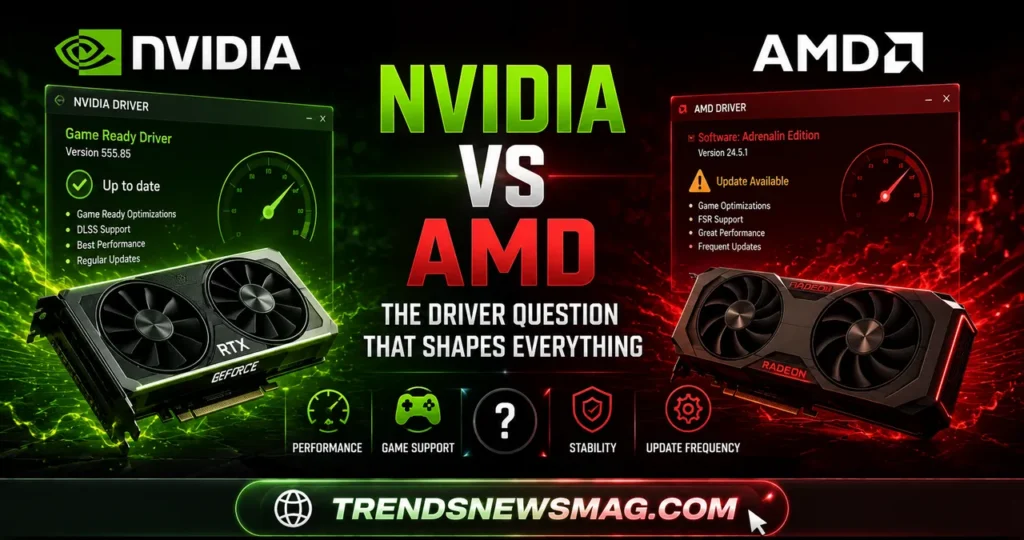
It would be irresponsible to write a guide like this without addressing the elephant in the room directly: your GPU vendor probably matters more to your Linux gaming experience than your distro choice does. AMD graphics cards benefit from amdgpu, an open-source driver developed collaboratively by AMD and the Linux kernel community, that ships built into the kernel itself. This means AMD GPUs typically work correctly the moment you boot any modern distro, with no extra driver installation step, no proprietary software licensing friction, and generally excellent day-one support for new hardware releases.
NVIDIA’s situation is more complicated, though it has improved dramatically in recent years. NVIDIA maintains its own proprietary driver, separate from the open-source Nouveau driver that ships by default on most distros (Nouveau offers basic functionality but drastically underperforms for gaming). Installing the proprietary NVIDIA driver used to be a genuinely painful, terminal-heavy process prone to breaking after kernel updates. Today, most major distros — Pop!_OS with its dedicated NVIDIA ISO, Nobara with its installer toggle, Fedora through RPM Fusion, Ubuntu and Mint through their graphical driver managers — have streamlined this into a few clicks. NVIDIA has also open-sourced significant portions of its kernel driver modules in recent years, which has meaningfully improved compatibility with newer kernels and reduced the frequency of driver-breaking updates that plagued Linux gamers in the past.
The practical takeaway is this: if you’re running an AMD GPU, virtually every distro on this list will treat you well, and your decision should lean more heavily on desktop environment preference, update philosophy, and bundled tooling. If you’re running NVIDIA, prioritize distros with dedicated, well-tested NVIDIA installation paths — Pop!_OS, Nobara, and Bazzite stand out specifically because their maintainers have put real engineering effort into making the NVIDIA experience painless rather than leaving users to fend for themselves.
Anti-Cheat and the Games That Still Don’t Work
Full honesty matters in a guide like this, so it’s worth addressing directly: not every game runs on Linux, and the primary culprit is kernel-level anti-cheat software. Titles using anti-cheat systems that require deep, privileged access to the Windows kernel — certain competitive shooters and battle royale titles among them — either block Linux and Proton entirely or require the publisher to explicitly opt in to Linux support through Valve’s Steam Deck compatibility program. This isn’t a distro problem; it’s a publisher and anti-cheat vendor decision, and no amount of distro-hopping will fix it if a specific game’s developer hasn’t enabled compatibility.
The good news is that this list of unsupported titles has been shrinking steadily rather than growing. Major anti-cheat vendors like Easy Anti-Cheat and BattlEye now offer Linux-compatible modes that developers can opt into with relatively modest engineering effort, and public pressure from the growing Steam Deck user base has pushed several previously unsupported titles to add compatibility over time. Community trackers like “Are We Anti-Cheat Yet” exist specifically to help gamers check a title’s status before buying, and checking a game there before assuming it will or won’t work has become standard practice in the Linux gaming community.
For gamers whose libraries lean heavily competitive multiplayer, it’s worth checking your specific must-play titles against these compatibility trackers before committing to a full Linux switch, regardless of which distro you eventually choose. For gamers whose libraries are dominated by single-player titles, indie games, older classics, and even most cooperative multiplayer experiences, this concern barely registers in practice, since the overwhelming majority of that content runs excellently through Proton on any of the distros covered in this guide.
Comparing the Top Gaming Distros at a Glance
Sometimes the clearest way to compare options is side by side. The table below summarizes how the major distros in this guide stack up across the factors that matter most to gamers.
| Distro | Base | Best For | NVIDIA Setup | Update Style |
|---|---|---|---|---|
| Pop!_OS | Ubuntu | Beginners with NVIDIA GPUs | Dedicated ISO, very easy | Point-release |
| Bazzite | Fedora Atomic | Handhelds, Deck-like desktop use | Built-in, automatic | Immutable, atomic |
| Nobara | Fedora | Gamers wanting zero setup | Installer toggle | Semi-rolling |
| Fedora KDE/Workstation | Fedora | Developers who also game | RPM Fusion, moderate effort | Point-release, fast cadence |
| EndeavourOS | Arch | Users wanting Arch without pain | AUR/manual, moderate effort | Rolling |
| Garuda Linux | Arch | Visual flair with safety nets | Assistant tool, easy | Rolling with snapshots |
| Linux Mint | Ubuntu | Everyday stability, ex-Windows users | Driver Manager, very easy | Point-release, conservative |
This table isn’t exhaustive, and no single row is “the winner” for every person reading this. It’s a starting point for narrowing down your options based on which column matters most to your specific situation — hardware, patience level, and how much you value bleeding-edge freshness versus predictable stability.
Desktop Environment: An Underrated Gaming Factor
Most gaming distro discussions focus entirely on drivers and Proton, but the desktop environment you choose has a genuine, measurable impact on your gaming experience too, particularly around resource usage and window management during multitasking. KDE Plasma has become the de facto favorite among Linux gaming distros — Nobara, Garuda, Bazzite’s default variant, and countless others build on it — largely because it’s lightweight relative to its feature set, highly customizable, and includes built-in compositor settings that let you toggle visual effects off entirely for maximum frame rates without needing third-party tools.
GNOME, the desktop environment behind Pop!_OS (in its heavily modified COSMIC-adjacent form) and vanilla Fedora Workstation, takes a more opinionated, streamlined approach that some gamers find gets out of the way more effectively during actual play sessions, though it offers less granular customization than KDE out of the box. Lighter environments like XFCE, while less commonly the default on dedicated gaming distros, remain popular among users running older or lower-spec hardware where every spare megabyte of RAM and percentage point of CPU usage genuinely matters for maintaining smooth frame rates in demanding titles.
The practical advice here is simple: don’t treat desktop environment as an afterthought you’ll deal with later. If you frequently alt-tab between a game, Discord, a browser with a wiki open, and perhaps a stream overlay, KDE Plasma’s virtual desktop and window-tiling tools genuinely improve that workflow. If you prefer a cleaner, more minimal daily driver and don’t mind slightly less customization, GNOME-based options serve that preference well. Most of the distros in this guide either default to one of these two or offer official alternate-desktop editions, so this factor alone can reasonably tip your decision between two otherwise similar options.
Performance Tools and Tweaks Worth Knowing About
Regardless of which distro you land on, a handful of performance tools show up repeatedly across the Linux gaming community and are worth understanding even if your chosen distro doesn’t bundle them automatically. GameMode, developed by Feral Interactive, is a small daemon that temporarily applies performance-oriented system tweaks — CPU governor adjustments, I/O priority changes — the moment a game launches, then reverts them when you quit. Many gaming-focused distros enable it by default; on others, it’s a quick package install away.
MangoHud has become the community standard for in-game performance overlays, displaying frame rates, frame time graphs, CPU and GPU temperatures, and usage percentages directly over your game, which is invaluable both for troubleshooting stutter and for satisfying simple curiosity about how your system is performing under load. Proton-GE, mentioned earlier in the context of Nobara, deserves a broader callout here too: even on distros that don’t bundle it automatically, tools like ProtonUp-Qt make installing and switching between Proton-GE versions trivially easy, and many notoriously finicky games run noticeably better on a recent Proton-GE build than on Valve’s stock Proton release, since community contributors often patch game-specific quirks faster than the mainline branch does.
Beyond software tweaks, a properly configured swap file or zram setup can meaningfully reduce stutter in memory-hungry titles, particularly on systems with 16GB of RAM or less, since modern AAA games increasingly push memory usage higher than older hardware configurations anticipated. Most gaming-oriented distros configure zram sensibly by default these days, but it’s worth checking your specific setup, especially if you’re running an older distro installation that predates more recent default improvements.
Making Your Decision: A Practical Framework
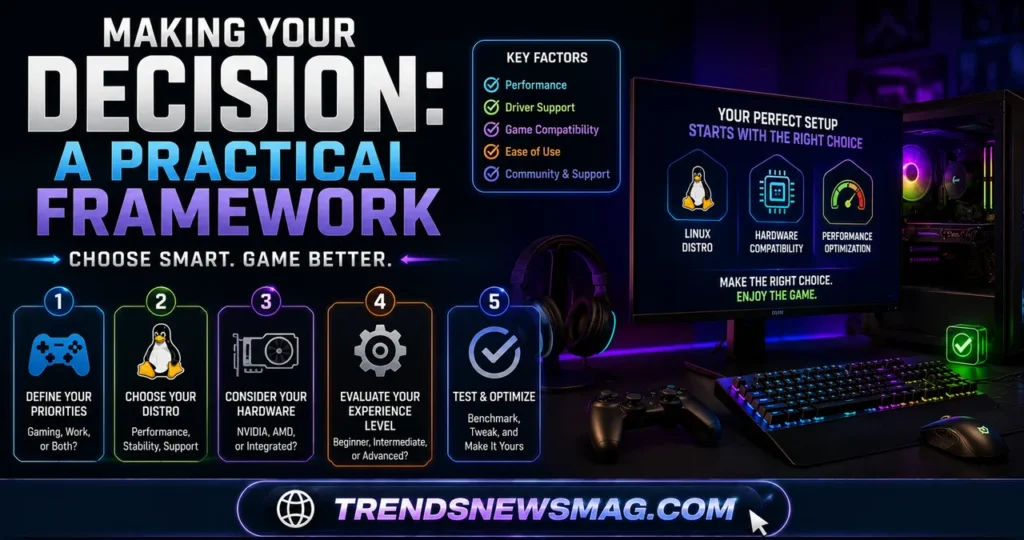
With so many strong options covered, the actual decision often comes down to answering a few honest questions about yourself rather than the distros themselves. If you’re brand new to Linux entirely and just want your existing Steam library working with minimal fuss, Pop!_OS or Linux Mint will treat you kindest, with Pop!_OS edging ahead specifically for NVIDIA users thanks to its dedicated installer. If you want a distro built explicitly for gaming with almost nothing left to configure yourself, Nobara or Bazzite deliver that experience most directly, with Bazzite specifically excelling for handheld and living-room setups.
If you’re comfortable with occasional troubleshooting in exchange for the newest possible drivers, kernel patches, and game compatibility fixes the moment they’re released, the Arch family — EndeavourOS for a gentler on-ramp, Garuda for visual flair and built-in snapshot safety, or vanilla Arch itself for absolute control — will reward that comfort with performance and freshness the other distros structurally can’t match as quickly. And if your PC does double duty as a work machine and a gaming rig where unexpected instability simply isn’t acceptable, the conservative, well-tested stability of Linux Mint or standard Fedora releases will serve you better than anything chasing bleeding-edge packages.
There’s no wrong answer among the distros covered here, and that’s genuinely the headline takeaway of the entire modern Linux gaming landscape. A decade ago, picking the best linux distro for gaming meant choosing the least broken option. Today it means choosing the option best tailored to your specific hardware, your tolerance for tinkering, and your personal taste in desktop environments — because virtually every serious contender on this list can competently run the overwhelming majority of your Steam library, often within a few percentage points of native Windows performance, and sometimes faster.
Conclusion
Linux gaming has crossed a threshold that felt almost unimaginable a decade ago. Thanks to Valve’s sustained investment in Proton, an increasingly mature driver ecosystem for both AMD and NVIDIA hardware, and a genuinely impressive crop of purpose-built distros, the question is no longer whether Linux can handle serious gaming — it clearly can — but which distro fits your specific needs best. Beginners coming from Windows will find a gentle, reliable landing with Pop!_OS or Linux Mint. Gamers who want a distro that handles nearly everything automatically should look hard at Nobara or Bazzite. Enthusiasts chasing maximum performance and day-one compatibility with the newest releases belong in the Arch ecosystem, whether that’s EndeavourOS, Garuda, or Arch itself. And handheld or living-room gamers now have Bazzite and SteamOS actively competing to deliver the smoothest console-like experience Linux has ever offered.
Whichever distro you choose, verify your GPU driver situation first, lean on tools like ProtonDB and anti-cheat compatibility trackers before assuming a specific title will or won’t run, and don’t be afraid to distro-hop if your first choice doesn’t feel right — the underlying gaming infrastructure (Steam, Proton, Wine, Mesa) is shared across nearly all of them, so switching distros rarely means starting your gaming setup from scratch. For further reading on real-time game compatibility data across thousands of titles, ProtonDB (https://www.protondb.com) remains the single most useful resource in the entire Linux gaming community.
FAQs
What is the best Linux distro for gaming if I have an NVIDIA GPU?
For NVIDIA users specifically, Pop!_OS stands out because System76 offers a dedicated ISO with NVIDIA drivers pre-installed, eliminating the most common source of setup headaches. Nobara and Bazzite also handle NVIDIA installation gracefully through built-in graphical tools, making either a strong alternative if you want a more gaming-focused distro rather than Pop!_OS’s general-purpose desktop approach. Whichever you choose, confirm you’re on a recent driver version, since NVIDIA’s Linux support has improved substantially over the past few years and older guides may reference outdated, more painful installation processes.
Do I need to dual-boot Windows to keep playing all my games?
Not necessarily, though it depends on your specific library. Thanks to Proton, the overwhelming majority of Steam games run well on any of the distros covered in this guide, often within a few percentage points of native Windows performance. The main exception is titles using kernel-level anti-cheat that hasn’t been enabled for Linux compatibility by the developer, which affects a shrinking but still real subset of competitive multiplayer games. Checking your specific must-play titles against a compatibility tracker before fully committing to a Linux-only setup is the safest approach, and many gamers do keep a small Windows partition purely as a fallback for the rare unsupported title.
Is Arch Linux really too difficult for gaming, or is that reputation outdated?
Vanilla Arch Linux does require a manual, terminal-driven installation process that intimidates many newcomers, and that reputation isn’t entirely undeserved. However, derivatives like EndeavourOS and Garuda Linux provide graphical installers and sensible defaults while preserving Arch’s rolling-release performance benefits and access to the AUR, effectively removing the historical difficulty barrier. For gamers specifically motivated by wanting the newest drivers and Proton builds as fast as possible, these Arch derivatives are absolutely worth considering rather than dismissing purely on Arch’s old reputation for difficulty.
How much does the desktop environment actually affect gaming performance?
The desktop environment itself has a modest but real impact, mostly through baseline resource usage and compositor overhead rather than in-game frame rates directly, since most games run in a way that bypasses the desktop compositor once launched. KDE Plasma is popular among gaming distros because it’s relatively lightweight and offers granular control over visual effects, while GNOME trades some customization for a more streamlined, opinionated experience. On modern gaming hardware, the difference between desktop environments is rarely the deciding factor in performance, but it does meaningfully affect day-to-day usability and multitasking comfort during longer sessions.
Can I switch between different Linux gaming distros without losing my game library?
Yes, and this is one of the most underappreciated advantages of the Linux gaming ecosystem. Since Steam, Proton, Wine, and Mesa work fundamentally the same way across nearly every distro covered in this guide, reinstalling Steam on a new distro and pointing it at your existing game library folder (if stored on a separate drive or partition) typically restores your entire collection without needing to redownload everything from scratch. This makes distro-hopping a genuinely low-risk way to test whether a different option better suits your hardware or workflow before committing long-term, which is part of why the community around finding the best linux distro for gaming remains so active and experimentation-friendly.
Which distro should total beginners choose if they’ve never used Linux before?
For someone who has never touched Linux and simply wants their existing games working with the least amount of friction, Linux Mint or Pop!_OS are the most consistently recommended starting points across the community, largely because both prioritize a Windows-like learning curve alongside genuinely reliable gaming support. Mint’s Driver Manager and overall polish make it an excellent generalist choice, while Pop!_OS pulls ahead specifically for NVIDIA GPU owners thanks to its dedicated installer. Either choice lets a newcomer get comfortable with Linux fundamentals without simultaneously fighting driver installation or terminal-heavy troubleshooting on day one.
Trending Today: [BinTracker Software: The Complete Guide to Smarter Waste and Bin Management in 2026]
Read more: Tubehalote